In this article
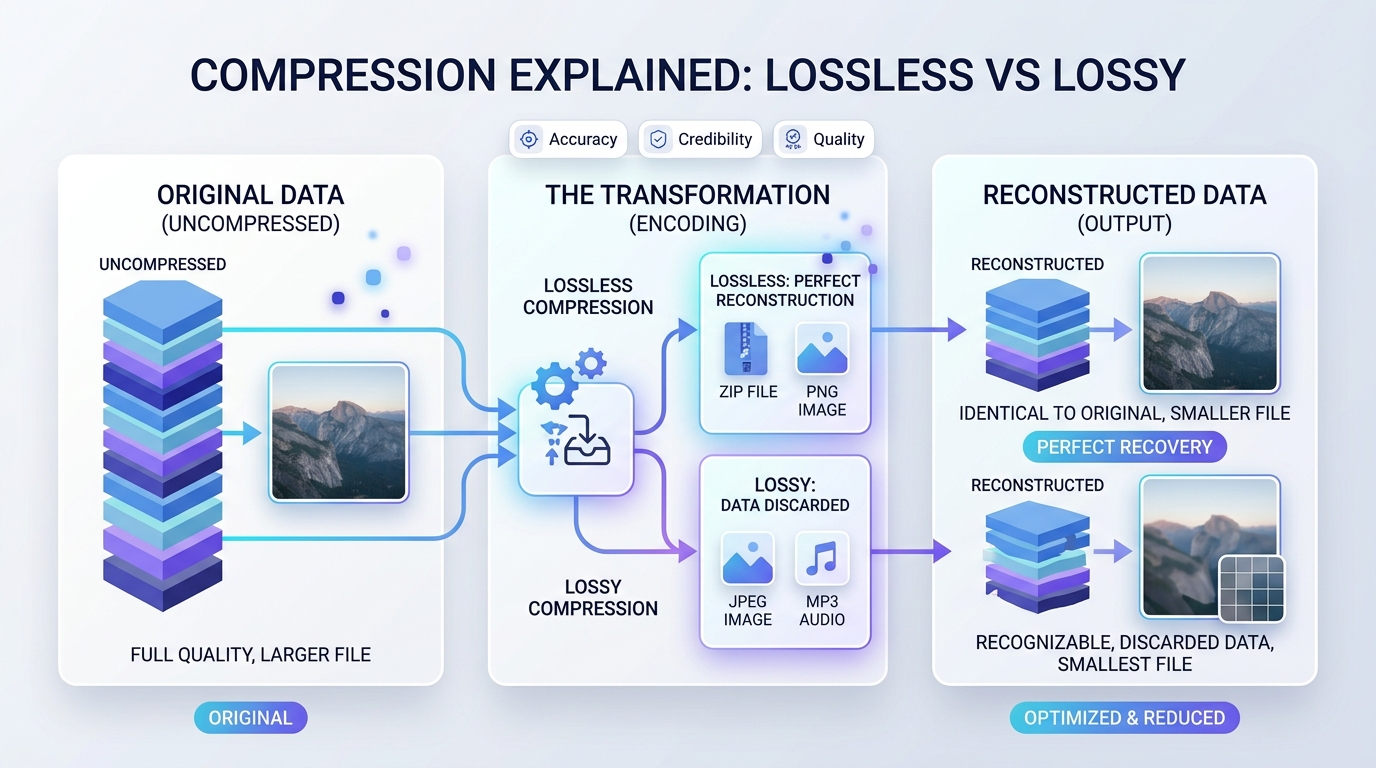
Every image, song and video you use has been compressed, otherwise the files would be unmanageably large. There are only two families of compression, and the choice between them explains why a screenshot looks fuzzy as a JPG, why a photo is enormous as a PNG, and why re-saving the same picture repeatedly slowly ruins it.
In short: Lossless compression makes a file smaller and gives back exactly the original. Lossy compression makes it much smaller by permanently discarding detail. Use lossless for masters and graphics, lossy for sharing photos, audio and video.
Lossless compression: nothing is thrown away
Lossless compression looks for repetition and describes it more briefly. A simple example: instead of storing “white, white, white, white, white, white”, store “6 × white”. When the file is opened, the original is rebuilt exactly, bit for bit.
This works very well when there is a lot of repetition, as in a screenshot with large areas of flat colour, and poorly when there is almost none, as in a photograph where every neighbouring pixel differs slightly.
Lossy compression: keeping what you will notice
Lossy compression goes further by removing information that human senses are least likely to miss. In images that means fine colour variations and tiny detail; in audio, sounds masked by louder ones. The result can be a tenth of the size or less, but what was removed cannot be recovered.
The amount removed is adjustable. That is what a “quality” slider controls: higher quality keeps more detail and gives a larger file.
Which formats use which
| Type of file | Lossless | Lossy |
|---|---|---|
| Images | PNG, GIF, lossless WebP, TIFF, BMP | JPG, lossy WebP, AVIF, HEIC |
| Audio | FLAC, ALAC, WAV | MP3, AAC, Ogg Vorbis, Opus |
| Video | Rare outside production work | MP4 (H.264, H.265), WebM, AV1 |
| Documents and archives | ZIP, 7z, and the text inside PDF and DOCX | Not applicable: text must survive exactly |
An example you can try
Take a photo from your phone and a screenshot of a text document, then save each both ways.
| As PNG (lossless) | As JPG (lossy, quality 80) | |
|---|---|---|
| Phone photo | Very large; identical to the original | Much smaller; looks the same at normal size |
| Screenshot of text | Small; perfectly sharp | Similar size or larger; faint smudges around letters |
The photo has little repetition, so lossless compression struggles while lossy compression thrives. The screenshot is mostly repetition, so lossless wins on both size and quality. You can run this test with the Image Converter and compare the sizes it reports.
Generation loss
Each time a lossy file is opened, edited and saved again, it is compressed again and a little more detail goes. After many rounds the damage becomes visible as blockiness and smeared edges. Lossless files do not suffer from this: you can open and save a PNG a thousand times and it will not change.
The practical rule: keep a lossless or original-quality master, do your editing on that, and export a lossy copy at the end.
Advantages and disadvantages
Lossless
Advantages
- The original is preserved exactly
- Safe to edit and re-save any number of times
- Ideal for text, line art, logos and archives
Disadvantages
- Much larger files for photos, audio and video
- Slower to load and more expensive to store
Lossy
Advantages
- Dramatically smaller files
- Adjustable balance between size and quality
- Makes streaming and fast websites possible
Disadvantages
- Discarded detail is gone for good
- Quality degrades with repeated saving
- Visible artefacts at low quality settings
Choosing in practice
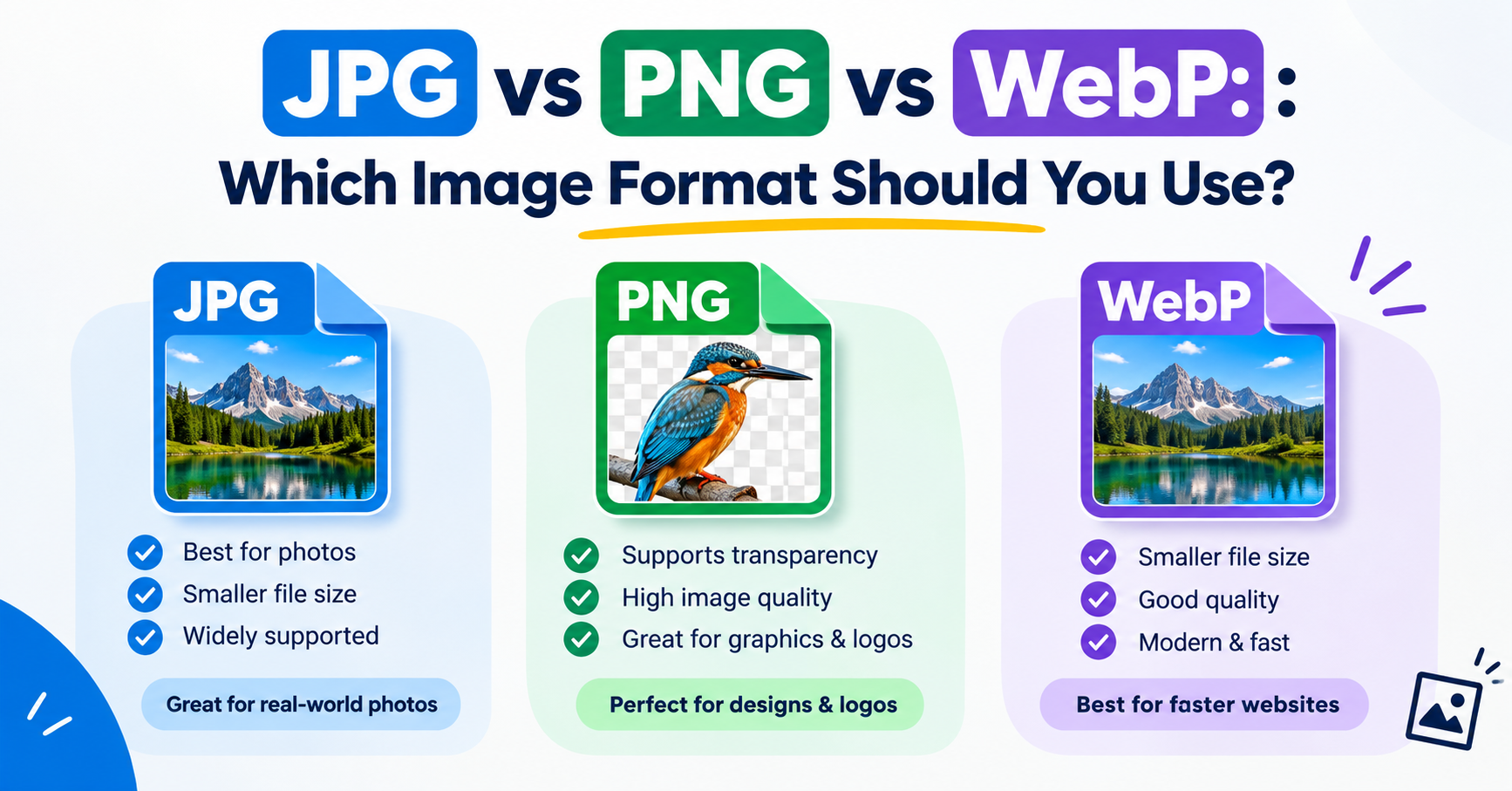
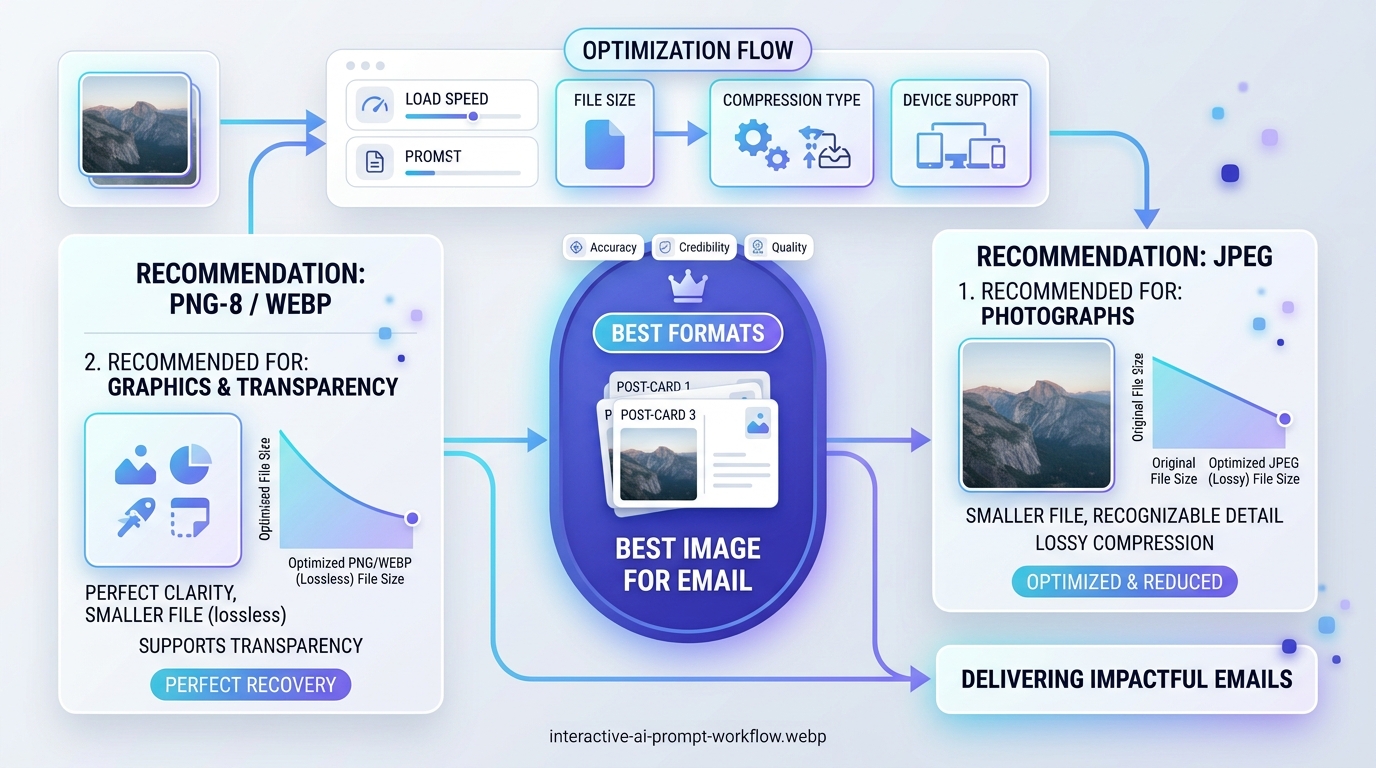
- Photos for a website, email or social media: lossy (JPG or WebP) at quality 75 to 85.
- Screenshots, diagrams, logos: lossless (PNG or lossless WebP).
- A picture you will keep editing: lossless, or your editor’s own format, until the final export.
- Music for everyday listening: lossy at a good bitrate is indistinguishable for most people on most equipment.
- Archiving originals: lossless or the untouched original files.
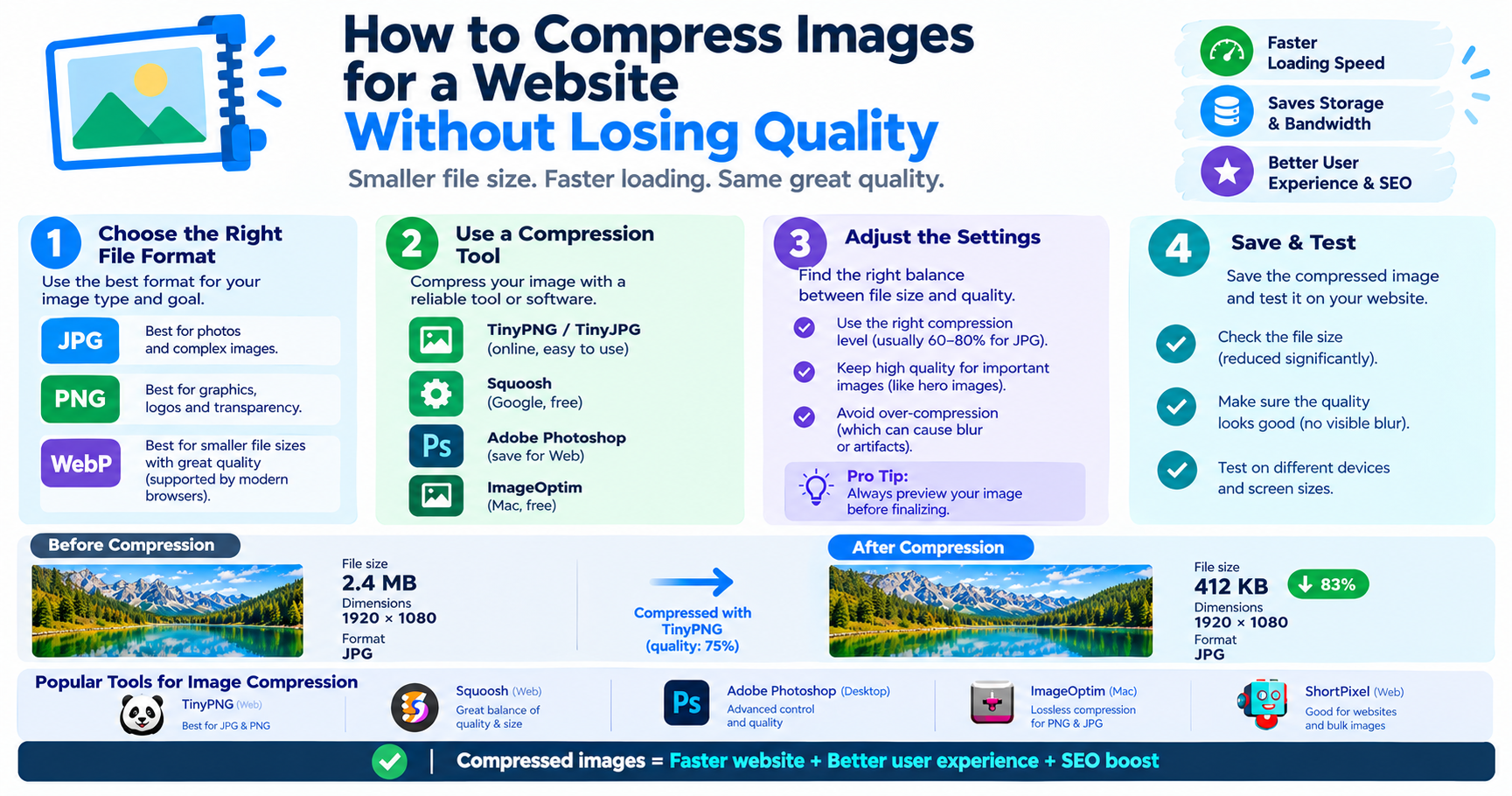
When you need a photo smaller, lowering quality slightly and reducing its dimensions achieves far more than any lossless trick. The Image Compressor shows the saving for each setting so you can stop as soon as it is small enough.
Frequently asked questions
Is lossy compression bad?
No. Used at sensible settings it is what makes photos, music and video practical to store and share, with no difference you can see or hear in normal use.
Is PNG lossless?
Yes. A PNG reproduces every pixel exactly, which is why it suits screenshots and graphics and produces large files for photographs.
Can I convert a lossy file to lossless to restore quality?
No. Converting a JPG to PNG stores the already-reduced picture exactly; the missing detail does not come back.
Is ZIP compression lossy?
No. ZIP is lossless: every file comes out exactly as it went in. That is also why zipping JPGs or MP4s barely shrinks them; they are already compressed.