In this article
Upload a photo straight from a camera and your page carries a 5 MB image that is displayed 800 pixels wide. Upload one that is too small and it looks soft. The right size sits between those, and you can work it out for any layout with one measurement.
In short: Make each image about twice the width it is displayed at, never wider than about 2000 pixels, and compress it until it is as small as it can be without looking worse.
The method
- Find the display width. How wide is the image on a desktop screen? A full-width banner might be 1400 pixels; a picture in an article column about 750.
- Double it. Phones and many laptops have high-density screens that use two or more device pixels per layout pixel. Twice the display width looks sharp on all of them.
- Cap it. Beyond about 2000 pixels wide, extra size adds weight that almost nobody can see.
- Compress. Dimensions set how sharp it can be; compression sets how heavy it is.
Recommended sizes
These suit most themes and page builders. Your own layout may differ, so measure when in doubt.
| Image | Suggested dimensions | Shape | Aim for |
|---|---|---|---|
| Hero or full-width banner | 1920 × 1080 px | 16:9 | Under 200 to 300 KB |
| Blog post featured image | 1200 × 630 px | About 1.9:1 | Under 150 KB |
| Image inside an article | 1200 to 1600 px wide | Any | Under 150 KB |
| Product photo | 1000 to 1500 px square | 1:1 | Under 150 KB |
| Thumbnail or card | 400 to 800 px wide | Consistent across the grid | Under 50 KB |
| Logo | Twice its display size, or SVG | Any | A few KB |
| Background texture | Up to 1920 px wide | Any | Under 200 KB |
The 1200 × 630 size for featured images is also what social networks commonly use for link previews, so one image serves both purposes.
Dimensions and file size are different things
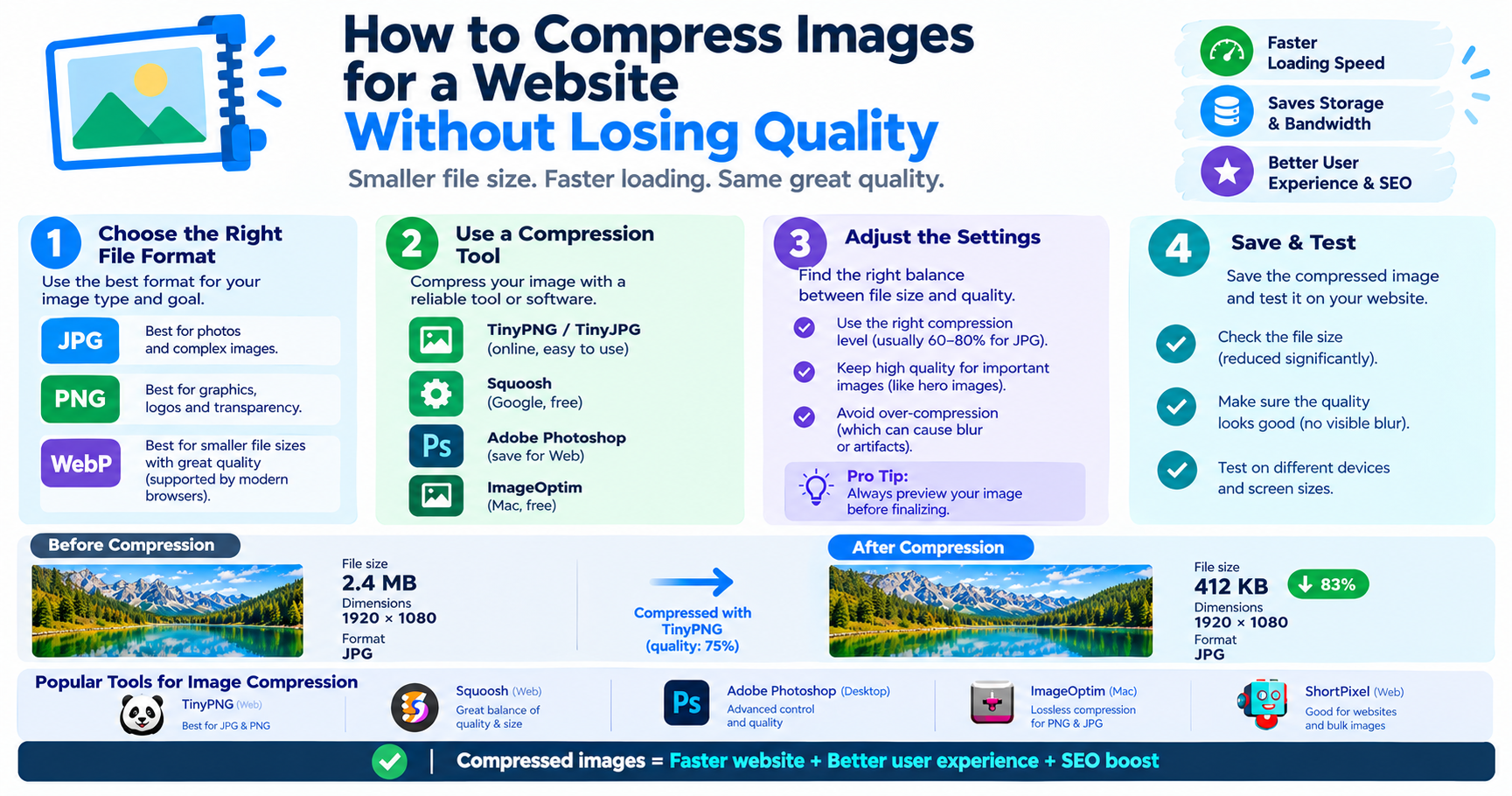
A 1920 × 1080 image can be 2 MB or 150 KB depending on format and quality. Reduce the dimensions first with the Image Resizer, then reduce the weight with the Image Compressor. WebP at quality 75 to 80 is a good default for photographs. The full process is in how to compress images for a website.
Keep shapes consistent
A grid of products or articles looks tidy only when every image has the same aspect ratio. Decide on one shape for each kind of image, such as square for products and 16:9 for article cards, and crop everything to it with the Image Cropper before uploading. Leaving it to the theme often cuts off heads and product edges.
Tell the browser the size
Images in a page should carry their width and height so the browser can reserve the space before the file arrives. Without them, text jumps down as each picture loads, which is irritating and counts against the page in Google’s layout-stability measure.
<img src="team.webp" alt="Our workshop team" width="1200" height="800" loading="lazy">Use loading="lazy" for images further down the page, but not for the main image at the top, which should load immediately.
One image or several sizes?
Serving the same 1920-pixel image to a phone wastes data. Most content management systems solve this by generating several widths of every upload and letting the browser choose. If yours does, upload at the largest size you need and let it do the rest. If you write HTML by hand, the srcset attribute does the same job.
Common mistakes
- Uploading straight from a camera or phone at full resolution.
- Using PNG for photographs, which multiplies the file size.
- Enlarging a small image to fill a banner.
- Mixing portrait and landscape images in one grid.
- Leaving out alt text, which screen readers and search engines rely on.
Advantages and disadvantages of larger images
Advantages
- Sharper on high-density and large screens
- Room for visitors to zoom on product pages
Disadvantages
- Slower pages, especially on mobile data
- More storage and bandwidth used
- Lower scores in speed tests if not compressed
Frequently asked questions
What is the best image size for a website?
About twice the width at which the image is displayed, up to roughly 2000 pixels wide, and compressed to a few hundred kilobytes at most.
How many KB should a website image be?
Aim for under 150 KB for ordinary images and under 300 KB for large banners. Smaller is better as long as it still looks good.
Should website images be 72 dpi?
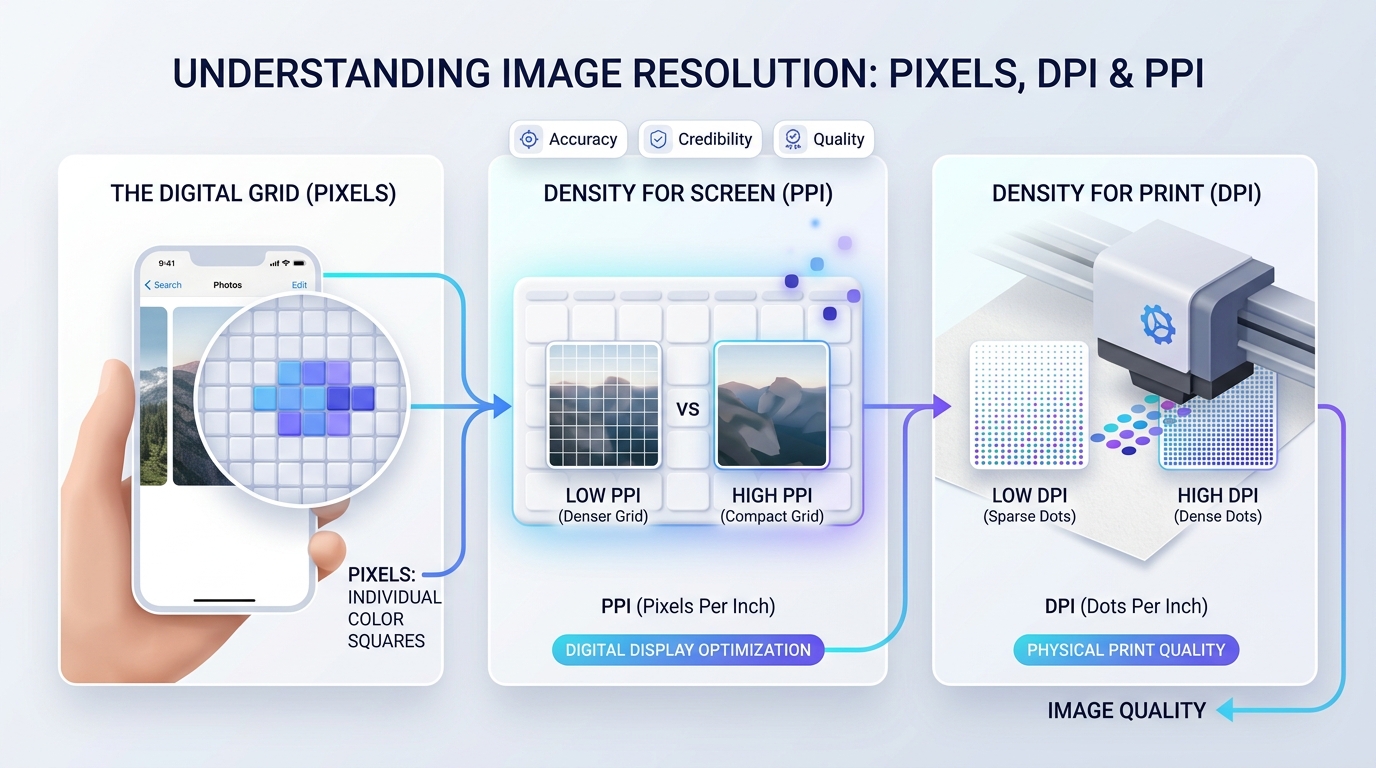
The dpi value is ignored by browsers. Only the pixel dimensions matter on screen.
What size should a blog featured image be?
1200 × 630 pixels works well and matches the shape used for link previews on social networks.