In this article
You take a crisp photo, upload it, and the version that appears online looks soft, blocky or washed out. Nothing is wrong with your camera. Somewhere between your device and the page, the picture was changed. Finding out where tells you how to stop it.
In short: Sites shrink and recompress what you upload. Give them an image that is already the right size and lightly compressed, and there is far less for them to damage.
The five usual causes
| Cause | What you see | Fix |
|---|---|---|
| The site recompresses uploads | Blocky patches, smeared detail | Upload at the size the site recommends so it has less to do |
| The image is stretched | Soft, fuzzy edges everywhere | Upload more pixels than the display size |
| A messaging app shrank it first | Low detail even before uploading | Send or save the original file |
| A low-quality preview is showing | Blurry at first, sharp after a moment | Wait, or check your connection |
| Text saved as JPG | Fuzzy halos around letters | Save screenshots and graphics as PNG |
1. The platform recompresses your photo
Social networks, marketplaces and many website builders process every upload to save storage and speed up loading. A large photo is scaled down and saved again at a lower quality. You cannot switch this off, but you can limit the damage: resize the photo yourself to the platform’s recommended dimensions and save it at high quality. A file that is already close to what the platform wants is altered much less.
2. The image is being stretched
If a 400-pixel-wide picture is shown in an 800-pixel space, the browser invents the missing pixels and the result looks soft. High-density phone and laptop screens make this worse, because they use two or three device pixels for each layout pixel. As a rule, upload an image twice as wide as the space it will fill.
3. It was shrunk before you uploaded it
Photos sent through chat apps are often heavily reduced. If you saved a picture from a conversation and uploaded that, the detail was lost before the website ever saw it. Ask for the original by email or a file-sharing link, or use the app’s “send as document” or “original quality” option. A screenshot of a photo has the same problem: it contains only as many pixels as your screen.
4. You are seeing a placeholder
Many sites show a tiny blurred preview while the full image loads. On a slow connection it can stay for several seconds. If the picture sharpens when you wait or reload, nothing is wrong with the file.
5. The wrong format
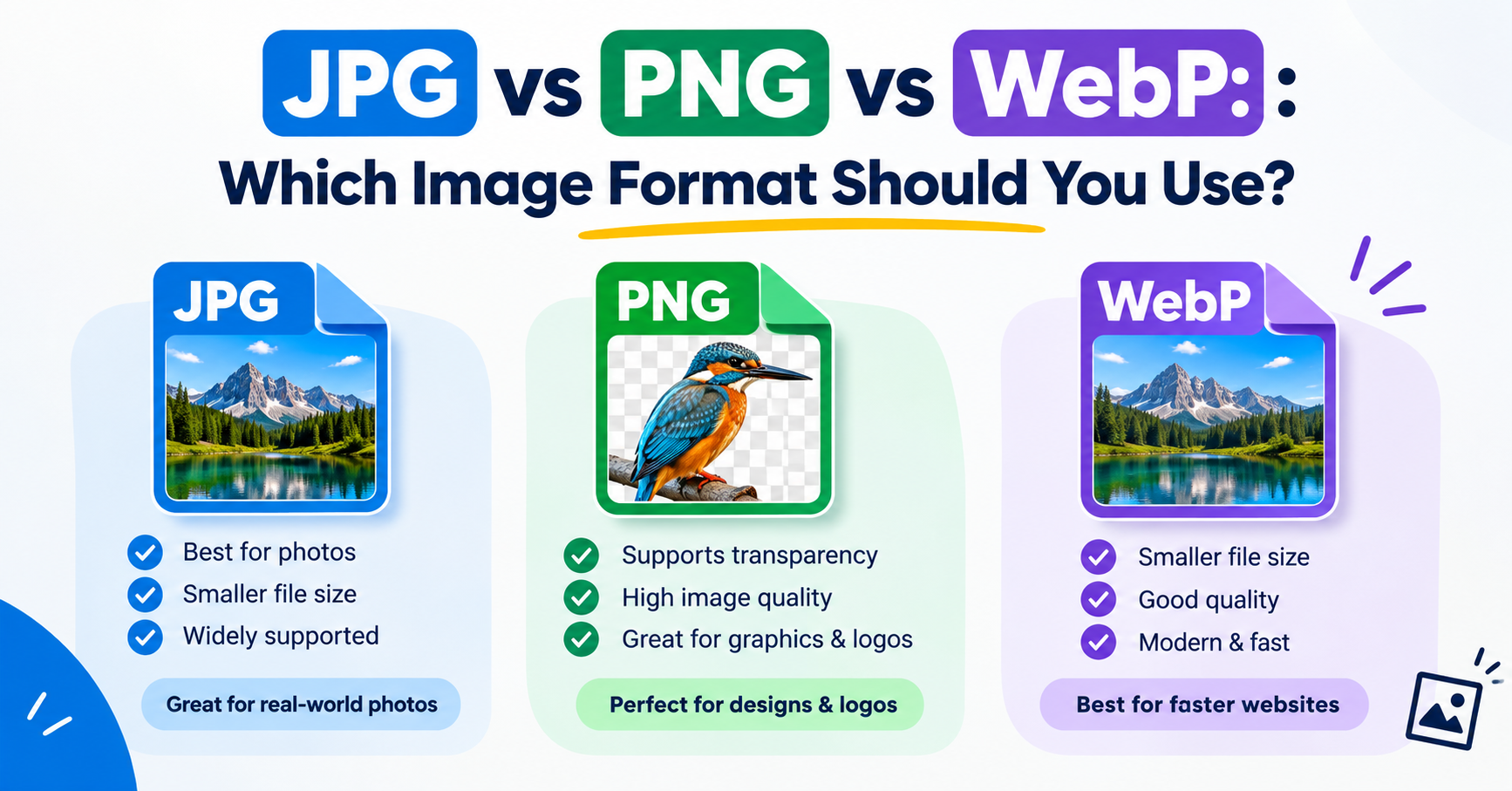
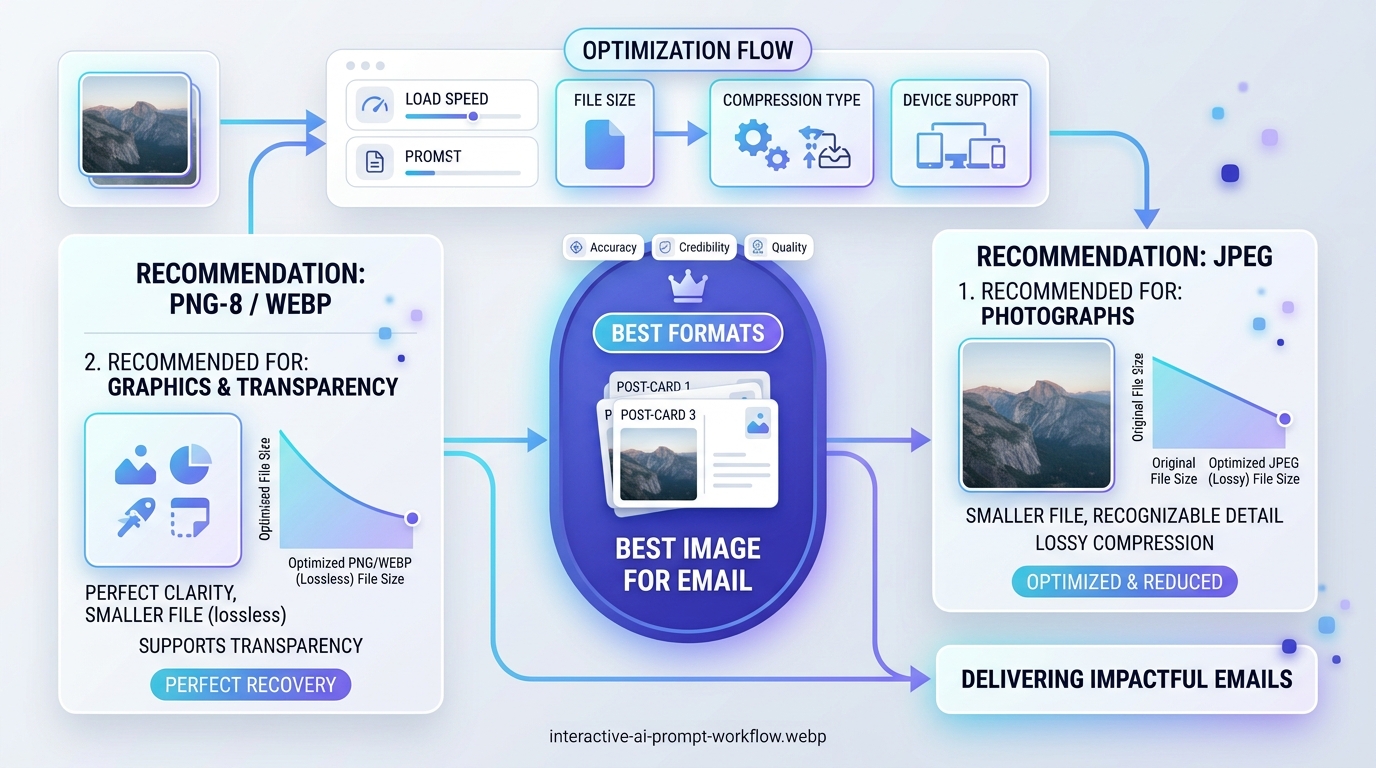
JPG is built for photographs. Saved as JPG, screenshots, logos and text pick up fuzzy artefacts around every edge. Use PNG for those. Going the other way, a photograph saved as PNG is simply very large, which makes a platform more likely to compress it hard.
How to prepare an image that stays sharp
- Start from the original file, not a copy from a chat or a screenshot.
- Find the size the destination recommends, or measure the space on your page.
- Resize to that size, or double it for high-density screens, with the Image Resizer.
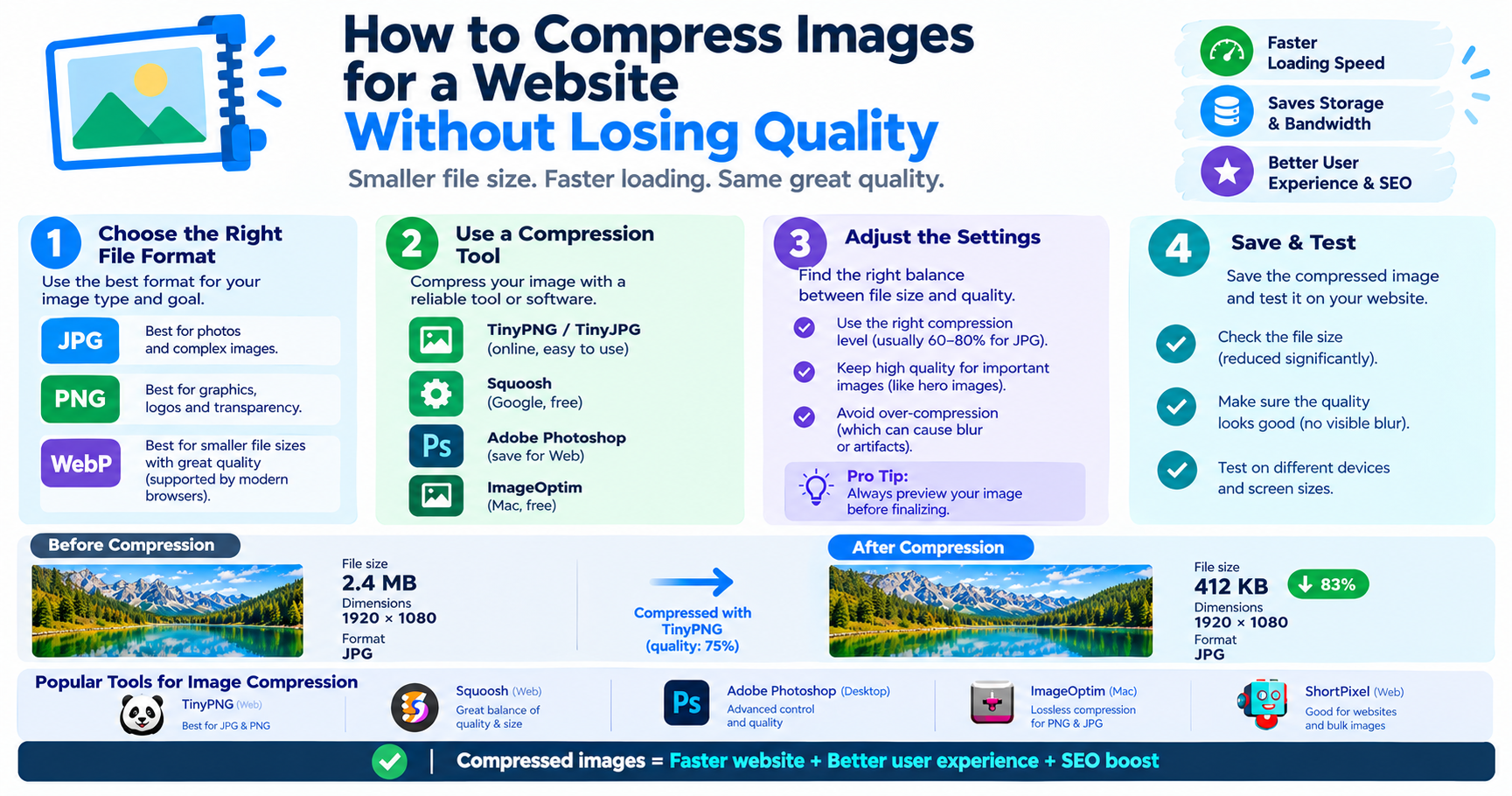
- Save photos as JPG at quality 85 to 90, and graphics as PNG.
- If there is a file-size limit, use the Image Compressor to get under it at the best quality that fits.
- Upload, then view the result on a phone and a computer.
When it is your own website
Check three things. First, whether your theme or builder creates smaller versions of each upload and at what quality; many have a setting for this. Second, whether the image’s width and height in the page match its real shape, since a wrong shape forces stretching. Third, whether a speed plugin or image service is compressing aggressively. Raising its quality setting a little usually fixes soft images with almost no cost in speed.
What cannot be fixed
Detail that has been discarded does not come back. Sharpening filters and upscalers can make a soft image look crisper, but they are estimating, not recovering. If the picture matters, go back to the original and prepare it again.
Frequently asked questions
Why does Facebook or Instagram make my photos blurry?
These platforms resize and recompress every upload. Uploading at their recommended dimensions and at high quality reduces how much they change the picture.
Does uploading a bigger file give better quality?
Only up to the size the site uses. A far larger file is simply scaled down and recompressed, sometimes more harshly.
Why is my image sharp on desktop but blurry on my phone?
Phone screens are high-density, so they need about twice as many pixels for the same space. Upload an image at double the display width.
Can I fix a blurry image after uploading?
Not by editing the uploaded copy. Replace it with a correctly sized version made from the original file.