In this article
WebP is efficient, but not everything accepts it. When an upload form, an email client or an older program refuses a WebP picture, converting it to JPG solves the problem. Every method below is free.
In short: The quickest route on any device is a browser converter. Windows Paint and Mac Preview can also save a WebP as JPG without installing anything.
Methods compared
| Method | Works on | Several files at once? | Install needed? |
|---|---|---|---|
| Browser converter | Everything | Yes | No |
| Paint | Windows | No | No |
| Preview | Mac | Yes | No |
| Screenshot or share menu | iPhone, Android | No | No |
In any browser
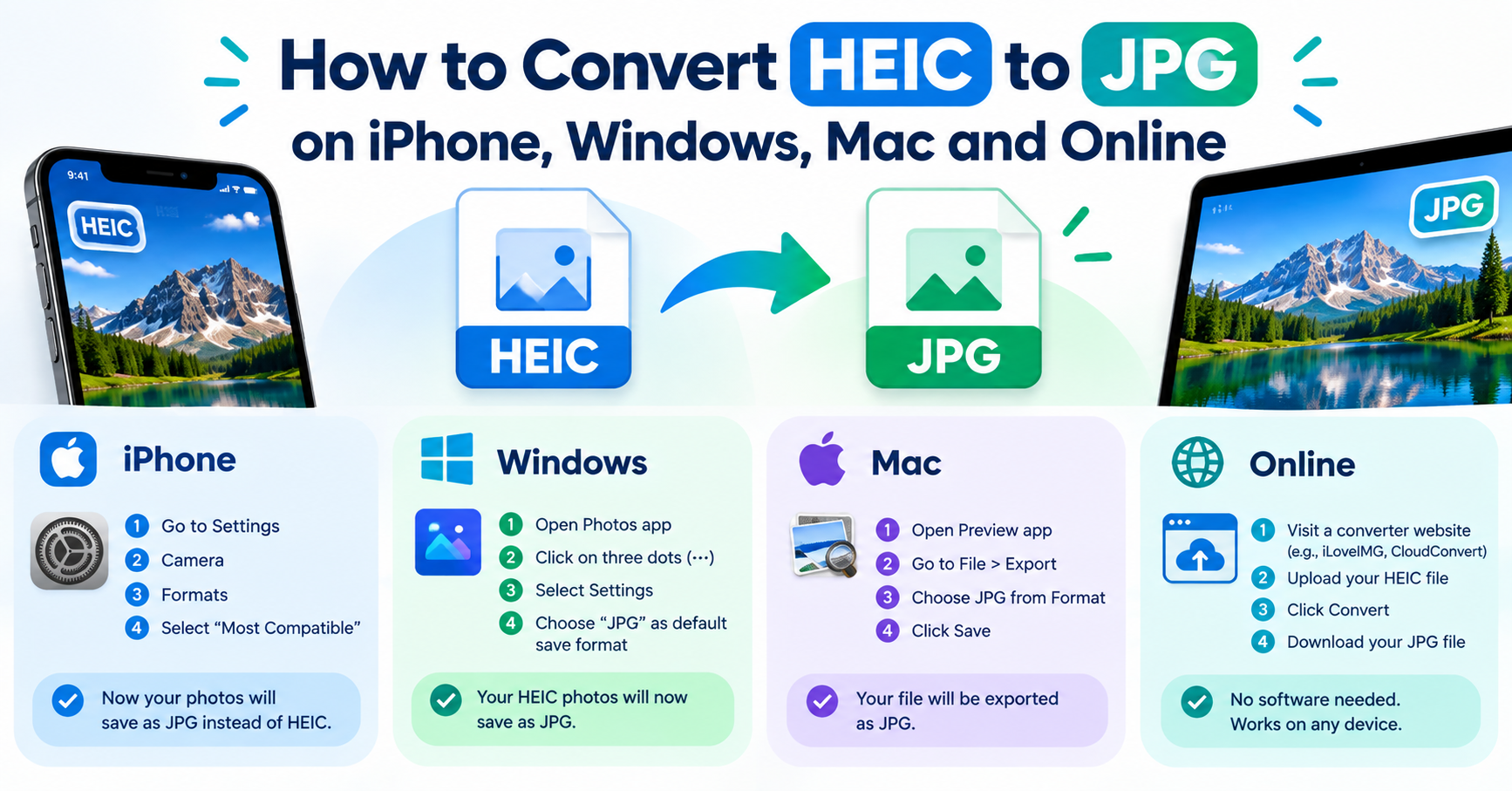
- Open the Image Converter.
- Add the WebP files, or drag them onto the page.
- Choose JPG as the format.
- Leave quality at about 90 for photos you want to keep, or lower it for smaller files.
- If the picture has transparent areas, pick the background colour that should replace them. JPG cannot be transparent.
- Download the results.
Files are converted on your device and are not uploaded.
On Windows with Paint
- Right-click the WebP file and choose Open with → Paint.
- Choose File → Save as → JPEG picture.
- Pick a name and location and save.
Paint is fine for one or two pictures. It gives no control over quality and flattens transparency to white.
On a Mac with Preview
- Open the WebP file in Preview. This needs macOS 11 or later.
- Choose File → Export.
- Set Format to JPEG and adjust the quality slider.
- Save.
To convert a batch, select the files in Finder, right-click and choose Quick Actions → Convert Image, then pick JPEG.
On an iPhone or Android phone
Phones have no simple built-in “save as JPG” for WebP files. The browser converter above works in Safari and Chrome on a phone and is the most reliable route. As a rough alternative you can open the picture and take a screenshot, but that reduces it to your screen’s resolution, so use it only when quality does not matter.
Which quality setting?
| Use | Suggested JPG quality |
|---|---|
| Printing or further editing | 90 to 95 |
| General sharing and uploads | 80 to 90 |
| Small file needed for a form | 60 to 75, then check the result |
A WebP that was saved in lossy mode has already lost some detail. Converting to JPG compresses it a second time, so do not go lower than you need. If the form has a strict size limit, convert first and then use the Image Compressor with a target size in KB.
JPG or PNG?
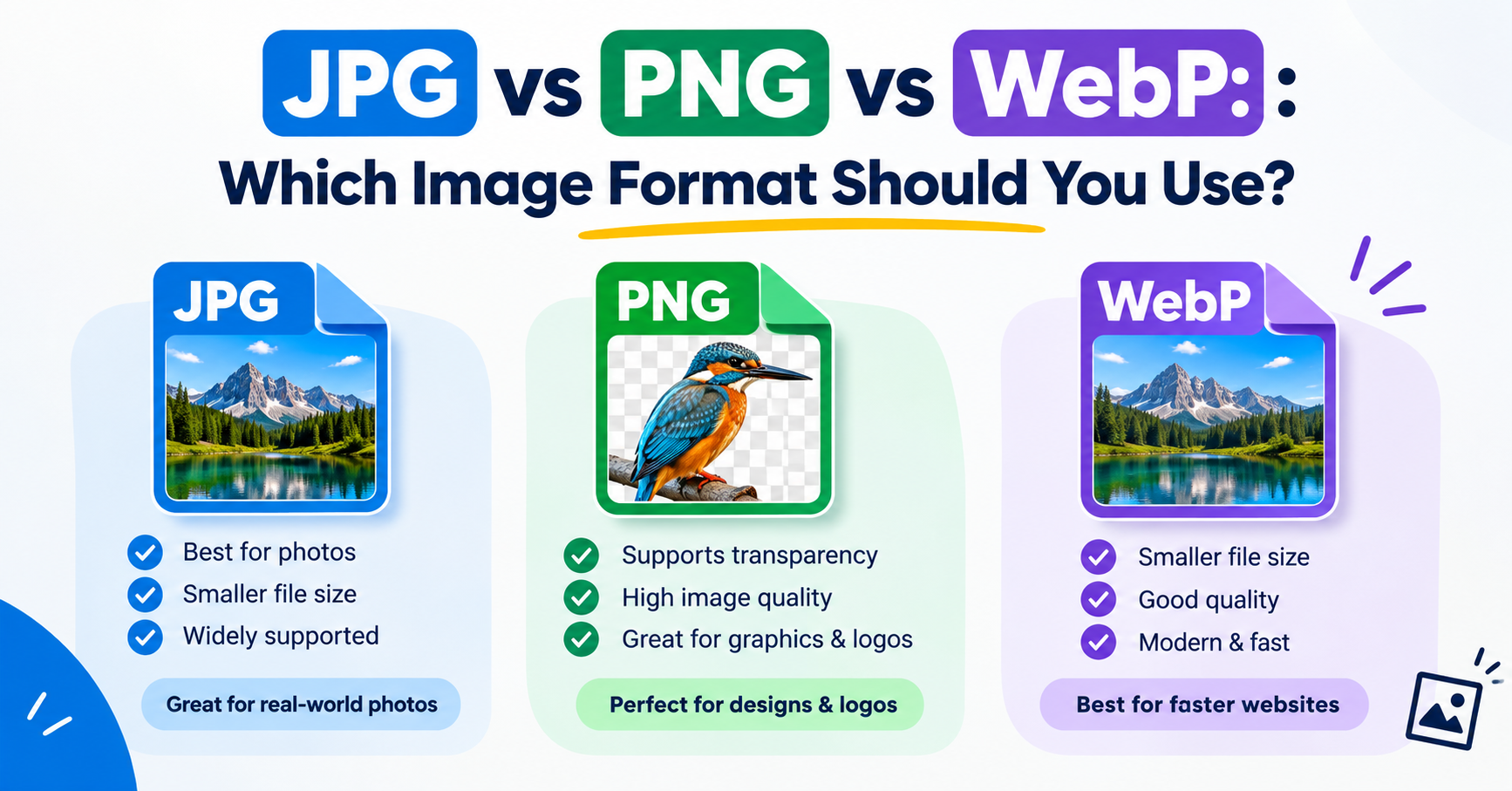
Choose JPG for photographs and anything going to a form that asks for it. Choose PNG when the WebP has a transparent background you need to keep, or when it is a screenshot or diagram with sharp text. PNG files of photographs are very large.
Problems you may meet
- The picture has a white or black box around it. It had a transparent background. Convert again and choose a background colour, or use PNG.
- An animated WebP becomes a still image. JPG holds one frame only. Animation needs GIF or a video format.
- The JPG is larger than the WebP. That is expected. WebP is the more efficient format.
Frequently asked questions
Does converting WebP to JPG lose quality?
Slightly, because JPG compresses the picture again. At quality 85 or higher the difference is not noticeable in normal use.
Can I convert many WebP files at once?
Yes. The browser converter accepts a batch, and on a Mac the Convert Image quick action in Finder handles a whole selection.
Can I just rename .webp to .jpg?
No. Renaming changes the label, not the contents. Some programs will still open it, but many will report an error.
Why did my image save as WebP in the first place?
The website served it in that format to load faster. The site chooses the format, not your browser settings.