In this article
Converting a Word document to PDF should be the easy part. Most problems, such as missing fonts, dead links and shifted pages, come from using the wrong route or from converting in a different program than the one the document was written in.
In short: Use Save As or Export to PDF in the program that created the document, not Print. That keeps links, headings and fonts, and gives you a choice of file size.
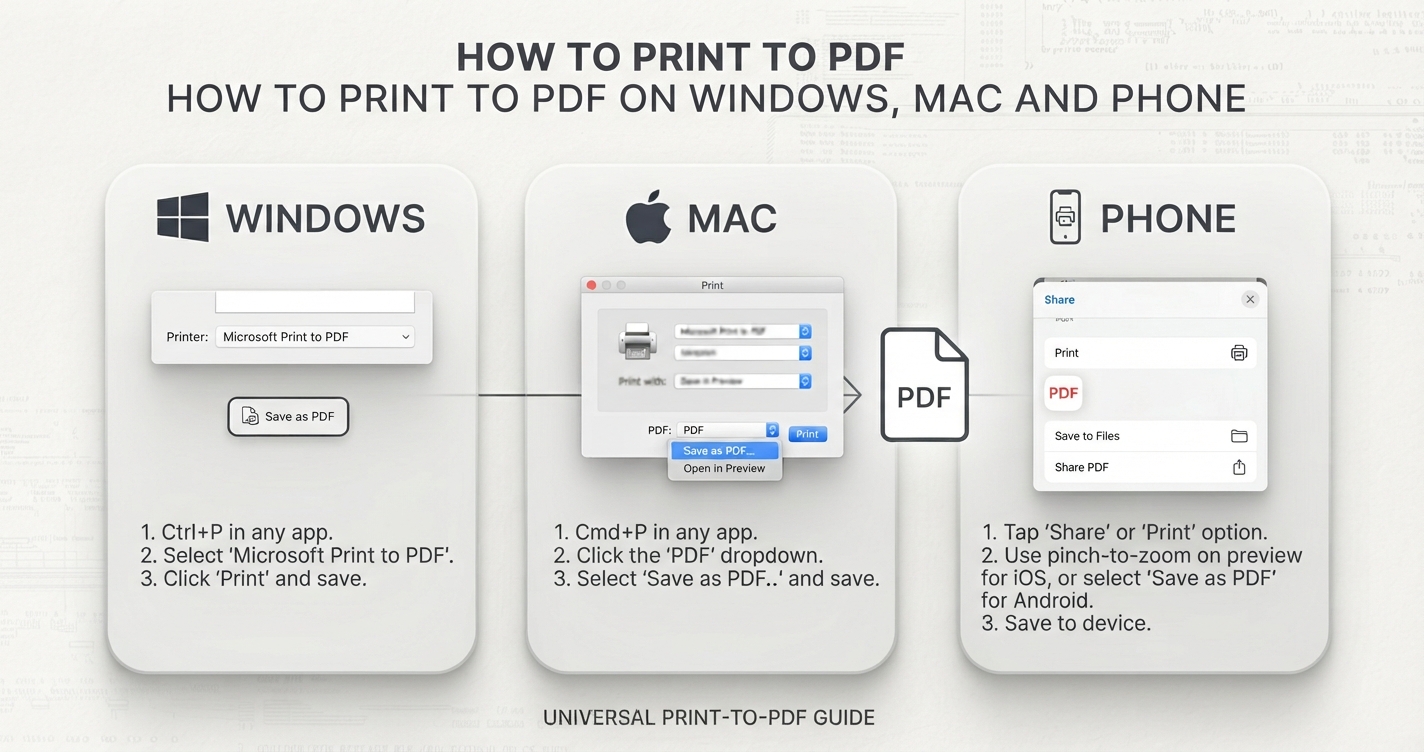
Save As beats Print
| Save As / Export to PDF | Print to PDF | |
|---|---|---|
| Clickable links | Kept | Usually lost |
| Bookmarks from headings | Available | No |
| Accessibility tags | Available | No |
| Choice of quality and size | Yes | Limited |
| Works from any program | No | Yes |
Use Print to PDF only when a program has no export option.
In Word on Windows
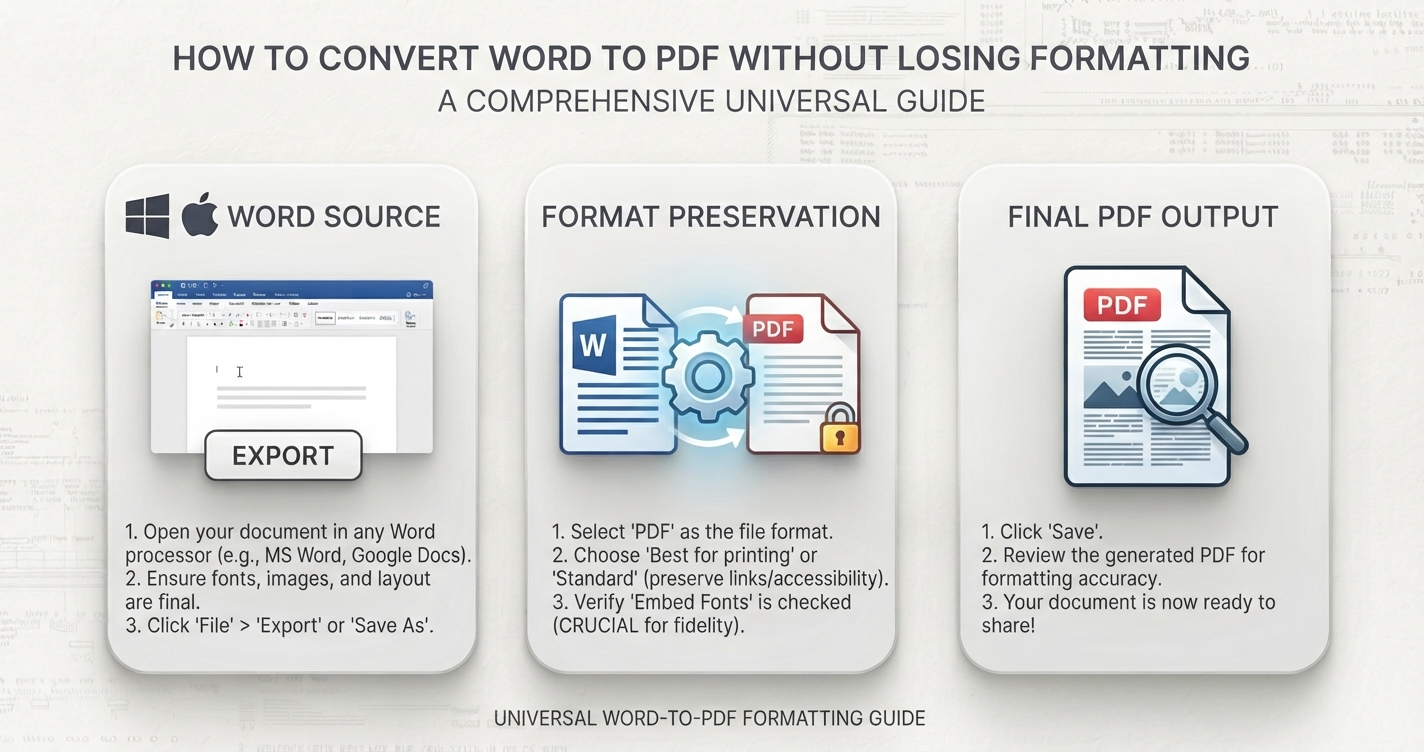
- Choose File → Save As (or Export → Create PDF/XPS).
- Set the file type to PDF.
- Choose Standard for normal quality or Minimum size for a smaller file.
- Select Options to create bookmarks from headings, choose a page range or include document properties.
- Save, then open the PDF and check it.
In Word on a Mac
- Choose File → Save As and set the format to PDF.
- Choose Best for electronic distribution and accessibility to keep links and structure, or Best for printing for print quality.
- Export and check the result.
Without Microsoft Word
| Program | Steps |
|---|---|
| Google Docs | Open or upload the document, then File → Download → PDF document |
| Word for the web | File → Save As → Download as PDF |
| LibreOffice Writer | File → Export as PDF |
| Apple Pages | File → Export To → PDF |
| Word on a phone | Share or Export → PDF |
Opening a .docx in a different program can change the layout before you ever reach the export step, because fonts and spacing are interpreted differently. For a document where layout matters, export from the program it was written in whenever you can.
Fixing formatting problems
| Problem | Likely cause | Fix |
|---|---|---|
| Text reflows, page count changes | Opened in a different app or version | Export from the original program |
| Font looks different | Font not installed on the exporting device | Install the font or choose a common one |
| Links are not clickable | Used Print to PDF | Use Save As or Export |
| Images look fuzzy | Minimum size setting, or pictures compressed in the file | Export at Standard; in Word, turn off image compression under File → Options → Advanced |
| Tracked changes or comments appear | Markup was visible | Accept changes and remove comments, or switch to “No Markup” view |
| Margins cut off when printed | Paper size mismatch (A4 vs Letter) | Set the paper size under Layout before exporting |
| Blank page at the end | Trailing paragraph marks or a page break | Show formatting marks and delete them |
A checklist before you export
- Update the table of contents and any cross-references.
- Check page breaks so headings do not sit alone at the bottom of a page.
- Add alt text to important images.
- Remove comments and tracked changes.
- Confirm the paper size your reader will use.
After exporting
Open the PDF, not the Word file, and read it through: this is what the recipient will see. Click a link or two. Look at the file size; if images have made it heavy, re-export at minimum size or see how to reduce PDF file size for email. To join it to other documents, use Merge PDF; to send only part of it, use Split PDF.
Advantages and disadvantages of exporting to PDF
Advantages
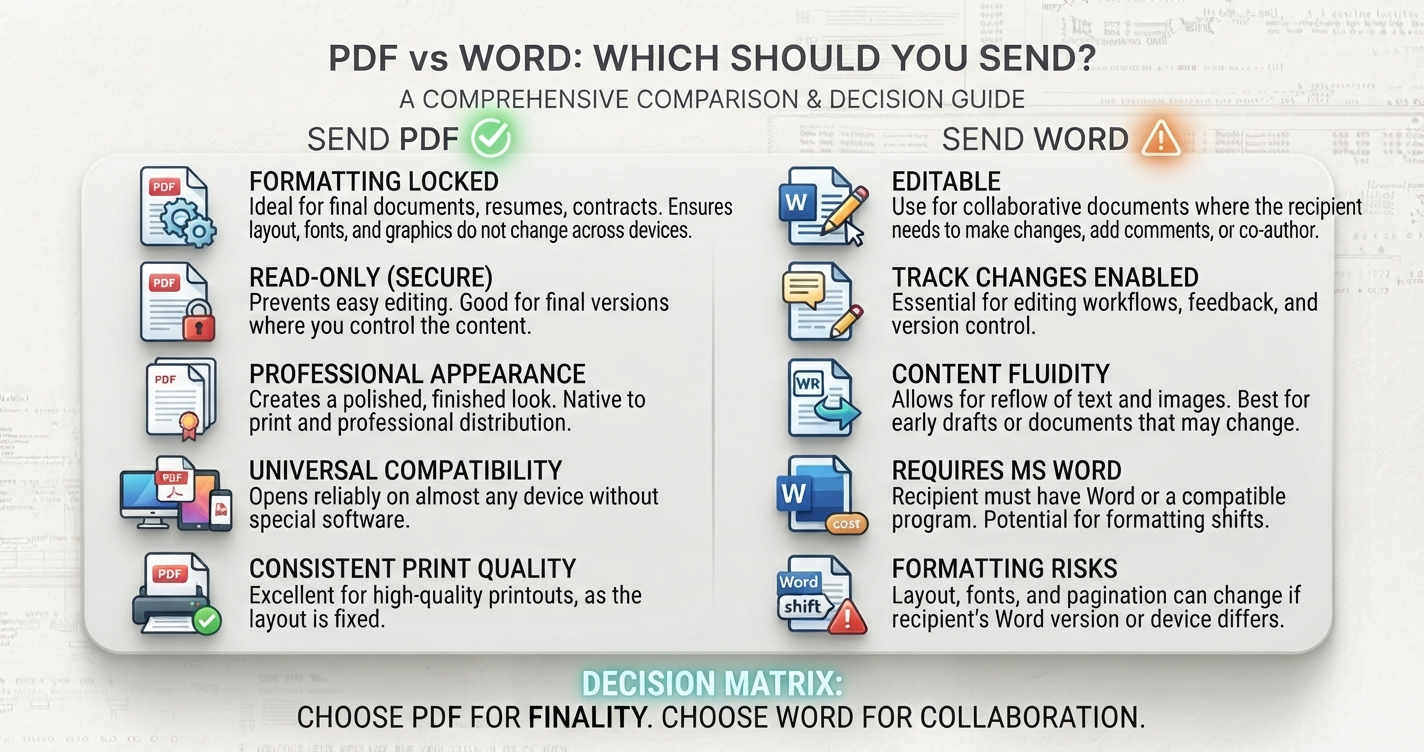
- The layout is fixed for every reader
- Fonts are carried inside the file
- Opens without Word
Disadvantages
- Not convenient to edit afterwards, so keep the Word original
- Small-size exports reduce image quality
- Each change means exporting again
Frequently asked questions
How do I convert Word to PDF for free?
Use File, then Save As, and choose PDF in Word. Without Word, Google Docs and LibreOffice can open the file and download it as a PDF.
Why does my formatting change when I convert to PDF?
Usually because the document was opened in a different program or a font was missing. Export from the original program with the fonts installed.
How do I keep hyperlinks when converting to PDF?
Use Save As or Export to PDF. Printing to PDF normally removes clickable links.
Can I convert a PDF back to Word?
Yes, Word and other tools can do it, but complex layouts rarely convert perfectly. Keep the original Word file.