In this article
“Print to PDF” does not involve a printer. It sends the pages a program would have printed into a PDF file instead. It is the universal way to keep a copy of an online receipt, a booking confirmation, an email or a web article, and it is built into every modern device.
In short: Open the Print dialog and choose Save as PDF as the printer or destination. It works in every program that can print, with no extra software.
On Windows
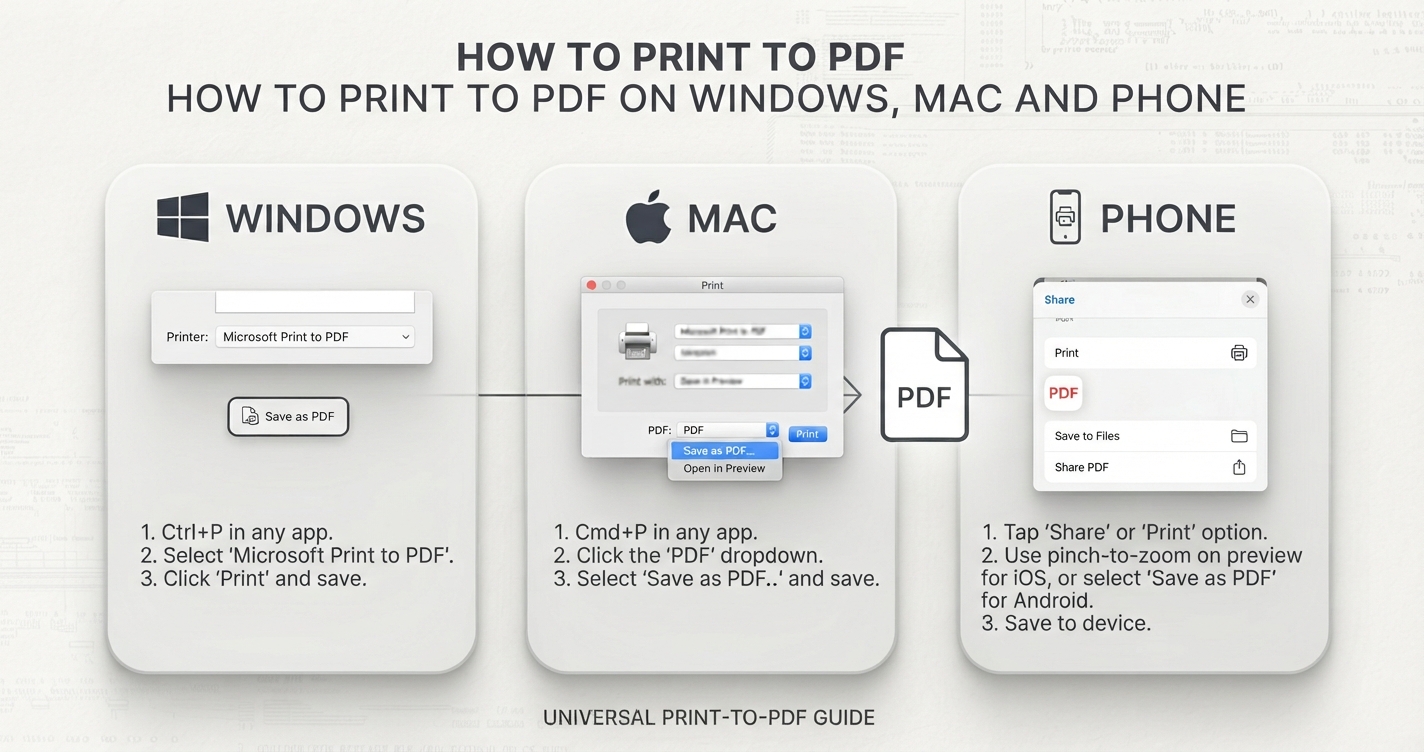
- Open what you want to save and press Ctrl + P.
- In the printer list, choose Microsoft Print to PDF. In browsers the option may be Save as PDF.
- Set pages, orientation and paper size if needed.
- Select Print, then choose a name and folder.
On a Mac
- Press Command + P.
- In the Print dialog, open the PDF menu at the bottom and choose Save as PDF.
- Name the file and save.
In Chrome, Edge or Firefox
- Press Ctrl + P or Command + P.
- Set Destination (or Printer) to Save as PDF.
- Open More settings to choose paper size, margins, scale, and whether to include headers, footers and background graphics.
- Select Save.
On an iPhone or iPad
- Tap Share, then Print.
- On the preview, pinch outwards with two fingers. It opens as a PDF.
- Tap Share again and choose Save to Files.
In Safari you can also tap Share, then Options, and choose PDF to save a whole web page.
On Android
- Open the menu and tap Share or Print.
- Set the printer to Save as PDF.
- Tap the PDF or download button and choose where to save.
Settings worth knowing
| Setting | What it does | When to change it |
|---|---|---|
| Pages | Saves only some pages | To keep just the receipt page of a long confirmation |
| Layout | Portrait or landscape | Landscape for wide tables |
| Paper size | A4, Letter and others | Match what the recipient prints on |
| Scale | Shrinks or enlarges content | To fit a wide page onto one sheet |
| Margins | White space around the page | “None” or “Minimum” to fit more |
| Headers and footers | Adds date, title and web address | Turn off for a cleaner page; leave on as proof of source |
| Background graphics | Includes colours and background images | Turn on if the page looks bare |
Saving web pages well
- Use your browser’s reader view first to remove menus and adverts, then print.
- Many sites provide a print-friendly layout automatically; check the preview before saving.
- For a long page you want as one continuous image and not as pages, a full-page screenshot may suit better.
Common problems
| Problem | Fix |
|---|---|
| “Microsoft Print to PDF” is missing | Turn it on under Windows Features, or use the browser’s Save as PDF |
| Text is cut off at the right | Reduce the scale or switch to landscape |
| Colours and backgrounds missing | Tick Background graphics |
| Links no longer work | Printing often removes links; use the program’s Export to PDF if it has one |
| The PDF is very large | The page has large images; lower the quality in the dialog if offered, or compress afterwards |
| Text cannot be selected | The source was an image; printing does not add text recognition |
Print to PDF or Export to PDF?
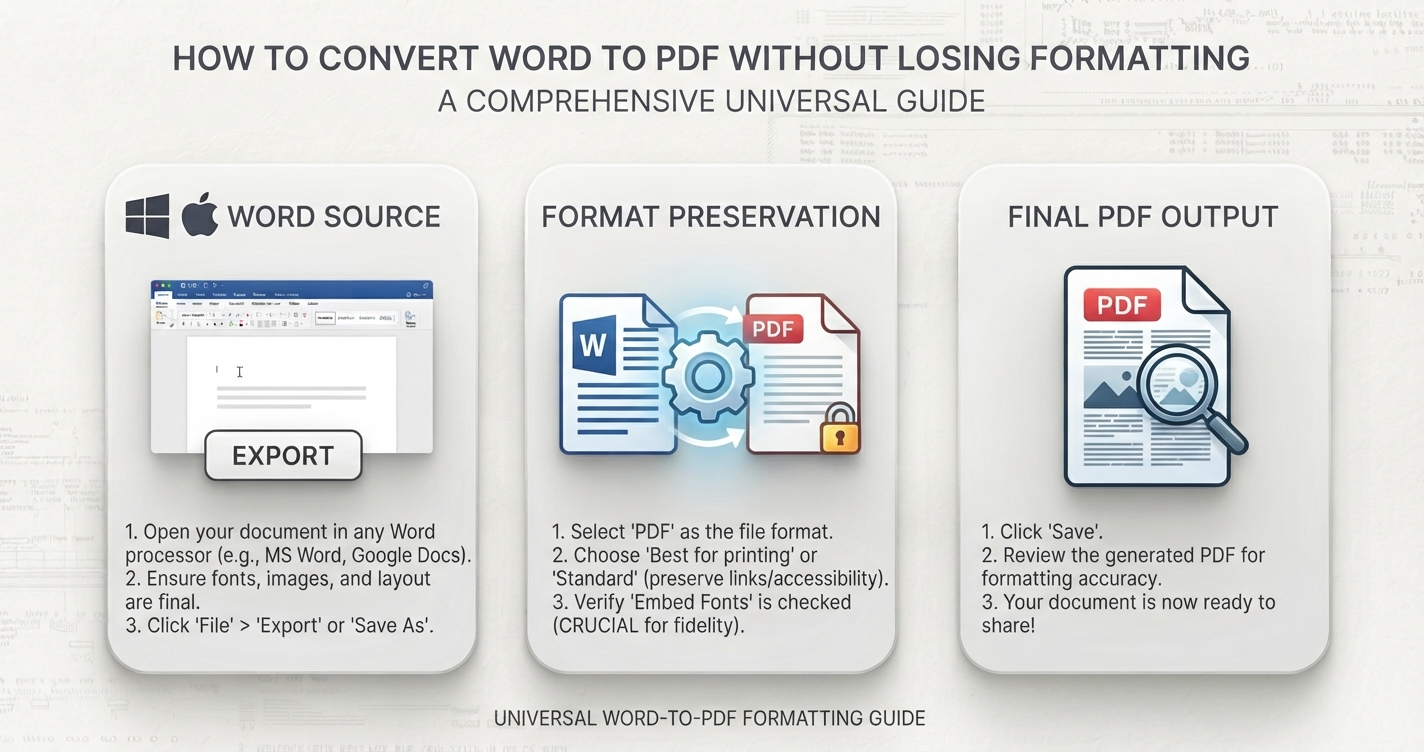
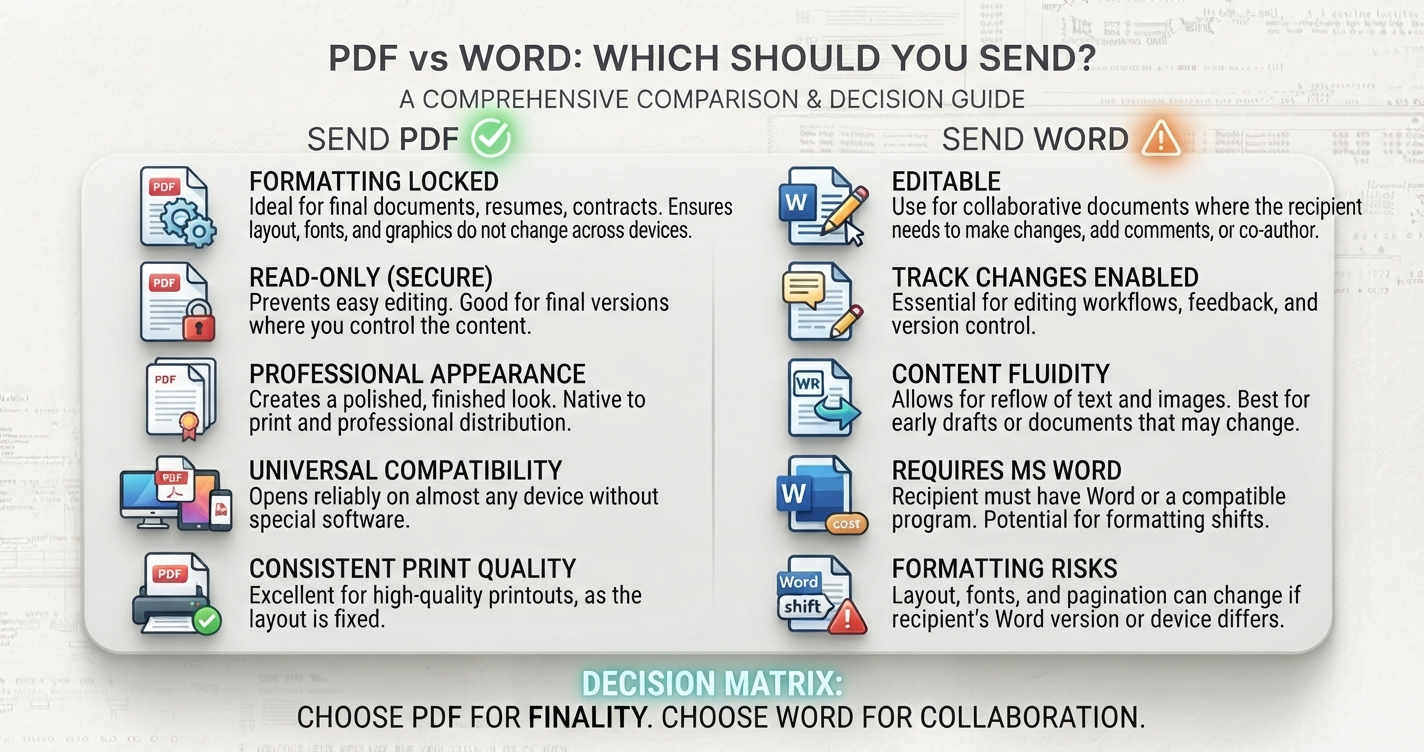
If a program offers Save As PDF or Export, as Word, Google Docs and most office software do, prefer it: links, bookmarks and accessibility information are preserved. Print to PDF is the fallback that works everywhere. See converting Word to PDF for the difference.
What you can do with the result
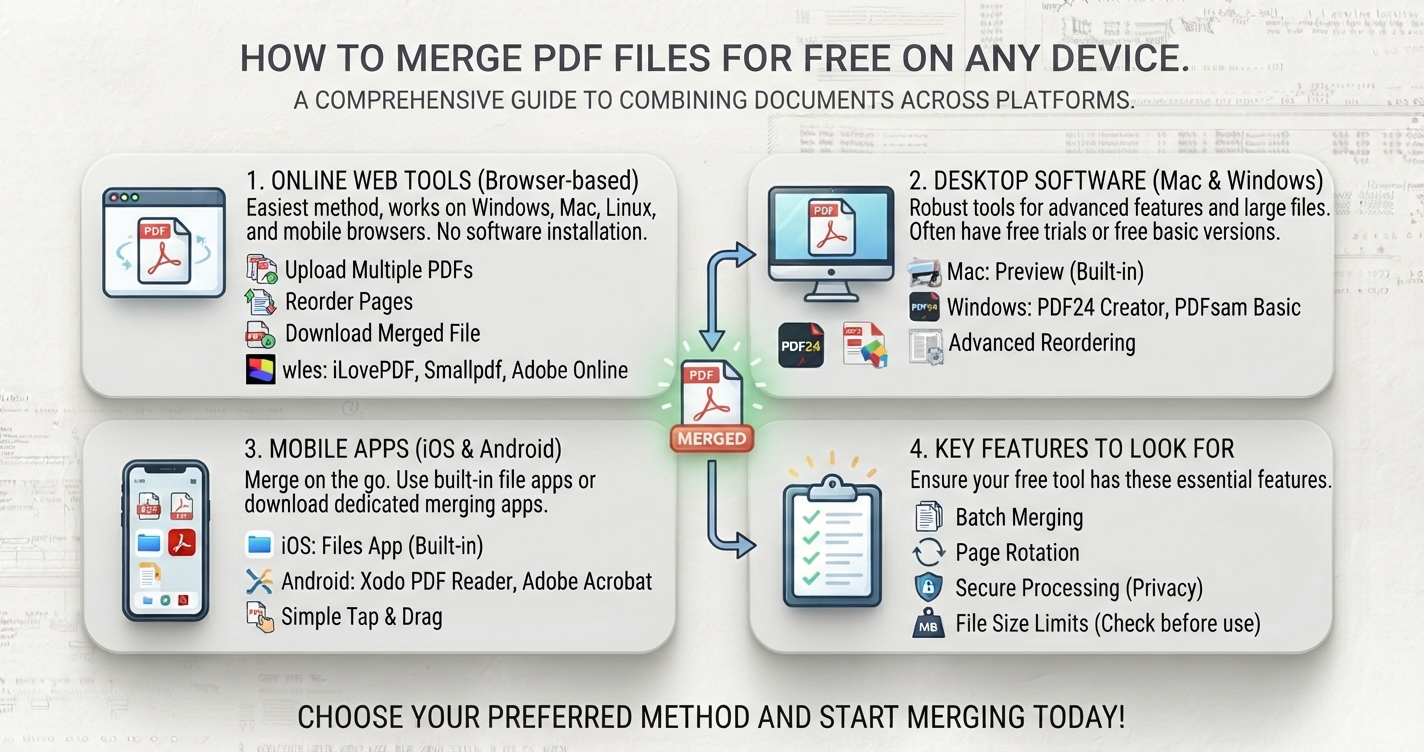
Combine several saved pages with Merge PDF, or keep only the pages you need with Split PDF.
Advantages and disadvantages
Advantages
- Works from any program that can print
- No software to install
- Captures the page as it looked on that day
Disadvantages
- Links, bookmarks and form fields are usually lost
- Web pages may paginate awkwardly
- Dynamic content such as videos and menus is not captured
Frequently asked questions
How do I save a web page as a PDF?
Open the Print dialog with Ctrl + P or Command + P and choose Save as PDF as the destination.
Is Print to PDF free?
Yes. It is built into Windows, macOS, iOS, Android and all major browsers.
Why is Microsoft Print to PDF missing?
It may be switched off. Enable it under Turn Windows features on or off, or use your browser's Save as PDF option.
Does Print to PDF keep hyperlinks?
Often not. Use the program's own Export or Save As PDF feature when links must keep working.