In this article
Payslips, bank statements, medical letters and ID copies should not sit in an inbox readable by anyone who gets into it. An encrypted PDF stays locked wherever it is forwarded or stored. Setting a password is free on every major platform.
In short: Set an open password using software you already have, such as Preview, Word, LibreOffice or the Files app. Make the password long, and send it by a different route from the file.
Two kinds of PDF password
| Open password | Permissions password | |
|---|---|---|
| Also called | User password | Owner password |
| What it does | Encrypts the file; nothing can be read without it | Asks software to restrict printing, copying or editing |
| Real protection | Strong, with a good password | Weak: many programs ignore or remove the restrictions |
| Use it for | Confidential documents | Discouraging casual changes only |
If the aim is confidentiality, you need an open password.
On a Mac
- Open the PDF in Preview.
- Choose File → Export.
- Select Permissions (or tick Encrypt on older versions).
- Tick Require Password To Open Document, enter the password and set an owner password when asked.
- Save the new file.
On an iPhone or iPad
- Open the PDF in Files.
- Tap the document’s name or the menu arrow at the top and choose Lock PDF.
- Enter and confirm a password.
On Windows
Windows has no built-in PDF encryption, but two free routes work well:
- From Word: when saving a document as PDF, select Options and tick Encrypt the document with a password.
- With LibreOffice (free): open the PDF in LibreOffice Draw, or the source document in Writer, choose File → Export as PDF, open the Security tab and set an open password. Simple PDFs survive this well; complex layouts may shift, so check the result.
On Android
Android has no system feature for this. Options are an office app that can export an encrypted PDF, creating the protected PDF on a computer, or the paid features of a PDF app. Alternatively, put the PDF in a password-protected ZIP archive using a file manager that supports encryption.
A note about our tools
The PDF tools on this site merge, split, rotate, number and watermark, but they do not add or remove passwords. A watermark labels a document as confidential; it does not lock it.
Choosing the password
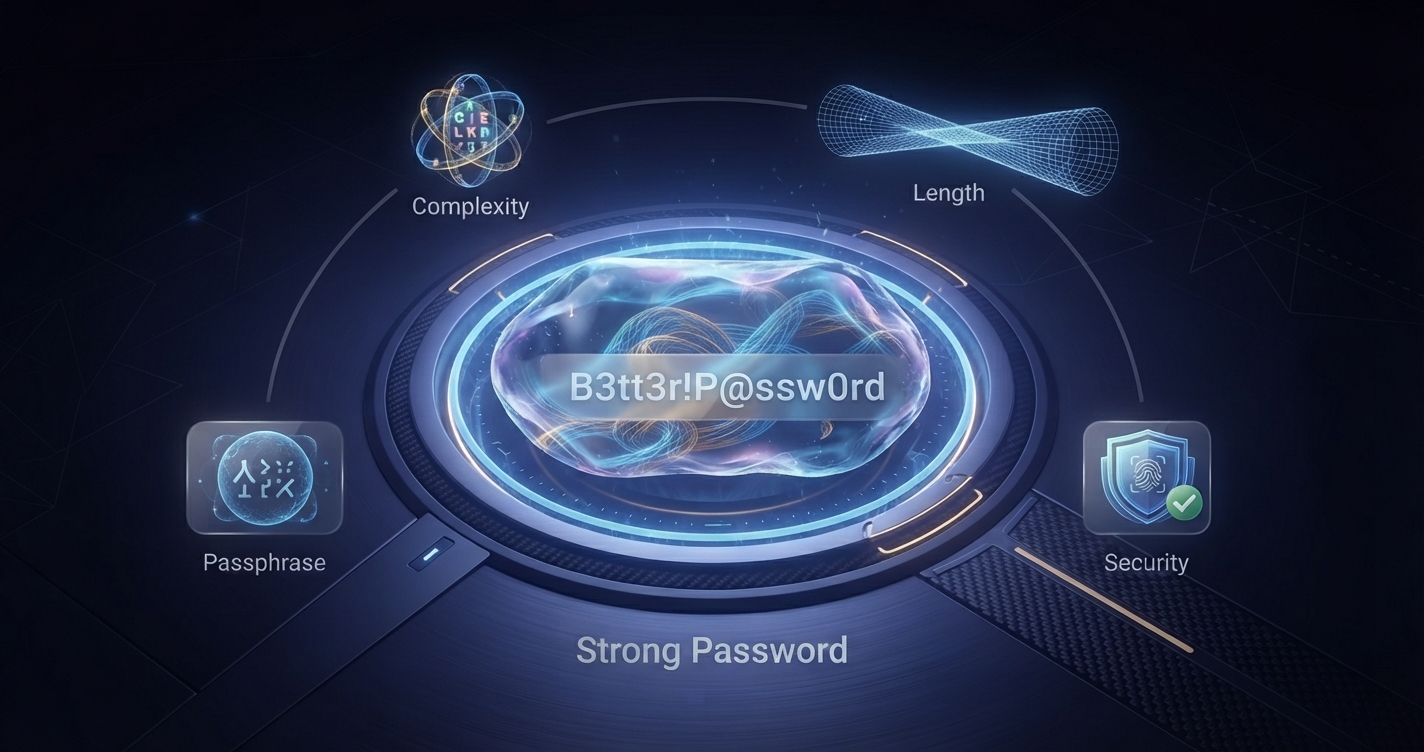
The encryption in modern PDFs (AES) is strong. The weak point is the password, because an attacker with the file can try guesses at high speed without anyone noticing.
| Password | Resists guessing? |
|---|---|
| A date of birth or phone number | No |
| A single word with a number | No |
| Eight random characters | For a while |
| Four or five random words, or 16+ random characters | Yes |
The Password Generator creates one on your device. More advice is in how to create a strong password.
Sharing the password
- Never put the password in the same email as the file. Anyone who can read one can read the other.
- Send it by a different channel: a phone call, a text message or a messaging app.
- Agree a password in advance for regular exchanges.
- Do not use a password that also protects one of your accounts.
Limits to understand
- Once someone opens the file with the password, they can save an unprotected copy or take screenshots. Encryption protects the file in transit and at rest, not from the recipient.
- If you forget the password, the file cannot be recovered. Keep the original or store the password in a password manager.
- Old PDFs protected with outdated 40-bit or RC4 encryption are weak. Re-protect them with current software.
- For regular sharing of sensitive files, an access-controlled link from a trusted storage service lets you withdraw access later, which a password cannot.
Advantages and disadvantages
Advantages
- The document stays protected wherever the file goes
- Free with tools most people already have
- Works with any PDF reader
Disadvantages
- A weak password defeats it
- No recovery if the password is lost
- The recipient can still pass on the contents
Frequently asked questions
How do I put a password on a PDF for free?
Use Preview on a Mac, Lock PDF in the Files app on an iPhone, or export from Word or LibreOffice with the encryption option on Windows.
Is a password-protected PDF secure?
Yes, if it uses modern AES encryption and a long, unpredictable password. Short or common passwords can be guessed quickly.
Can I email the password with the PDF?
You should not. Send the password separately, by phone or a messaging app.
What is the difference between an open password and a permissions password?
An open password encrypts the file so it cannot be read. A permissions password only requests limits on printing or editing and is easily bypassed.