In this article
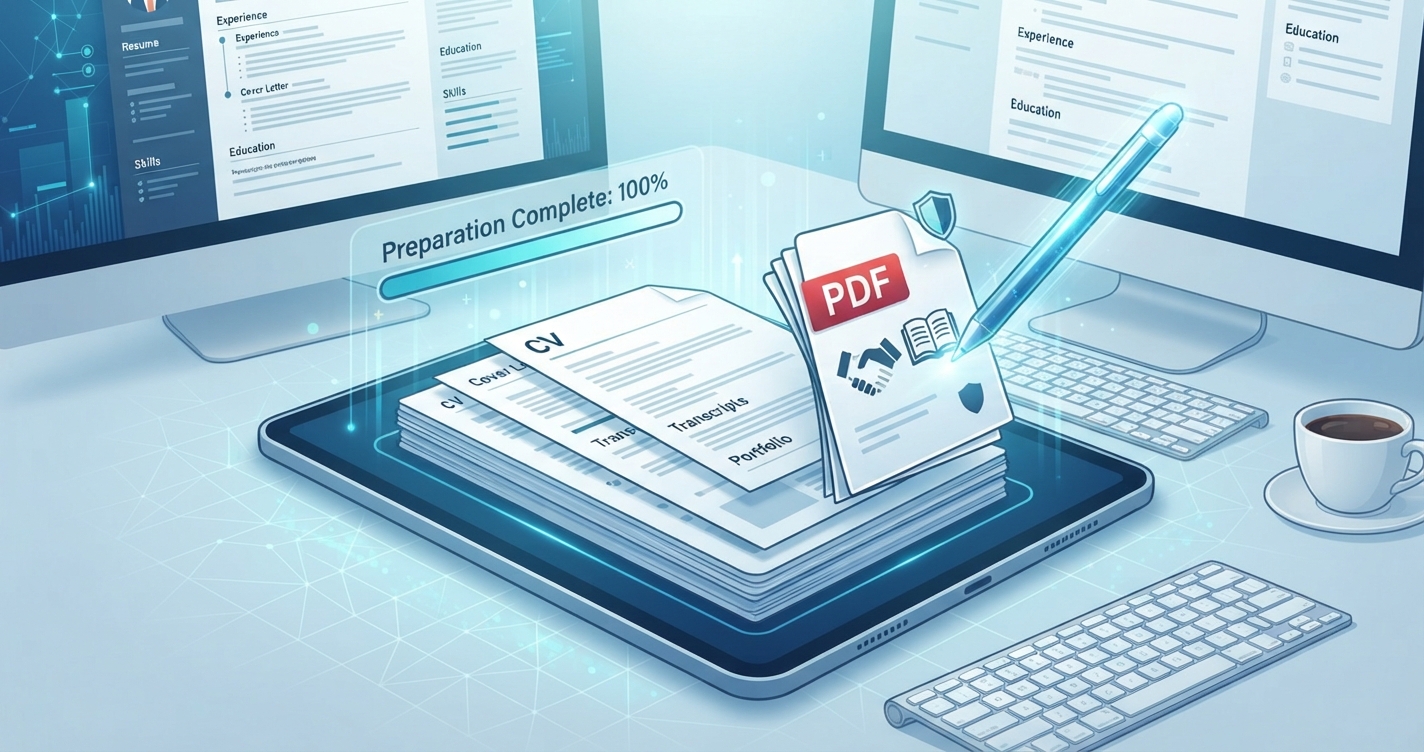
An application is often judged before a word of it is read, by whether the documents arrive in the form requested. Portals reject oversized files automatically, and a reviewer facing eight separate attachments named “scan0003.jpg” starts with a poor impression. A tidy PDF takes about twenty minutes.
In short: Read the instructions first, then build one PDF: export text documents properly, scan paper cleanly, merge in the requested order, keep it under the size limit and give it a clear name.
1. Read the requirements
Look for these before doing anything else, and follow them exactly even where they differ from the advice below:
| Requirement | Typical wording |
|---|---|
| Format | “PDF only”, sometimes “PDF or DOCX” |
| One file or several | “Upload as a single PDF” or one slot per document |
| Size limit | Often 2 MB to 10 MB per file |
| Order | A stated sequence of documents |
| File name | A pattern such as Surname_Firstname_CV |
| Certified copies or translations | Required for some transcripts and identity documents |
2. Create each document properly
- CV, cover letter, personal statement: export from your word processor with Save As or Export to PDF, not Print. Links stay clickable and text stays selectable, which also helps applicant tracking systems read it.
- Paper certificates and transcripts: scan with your phone’s document scanner in greyscale, one document per file. See how to scan to PDF with your phone.
- Photos of documents you already have: crop them and convert with JPG to PDF.
- Digital certificates: use the original PDF you were issued, not a screenshot of it.
3. Put everything in order
If no order is given, this one is widely expected:
- Cover letter or personal statement
- CV or résumé
- Degree certificates and transcripts, most recent first
- Professional certificates
- References, if requested
- Identity or other supporting documents, only if requested
Name the files with number prefixes (01, 02, 03) so they sort in this order.
4. Merge into one PDF
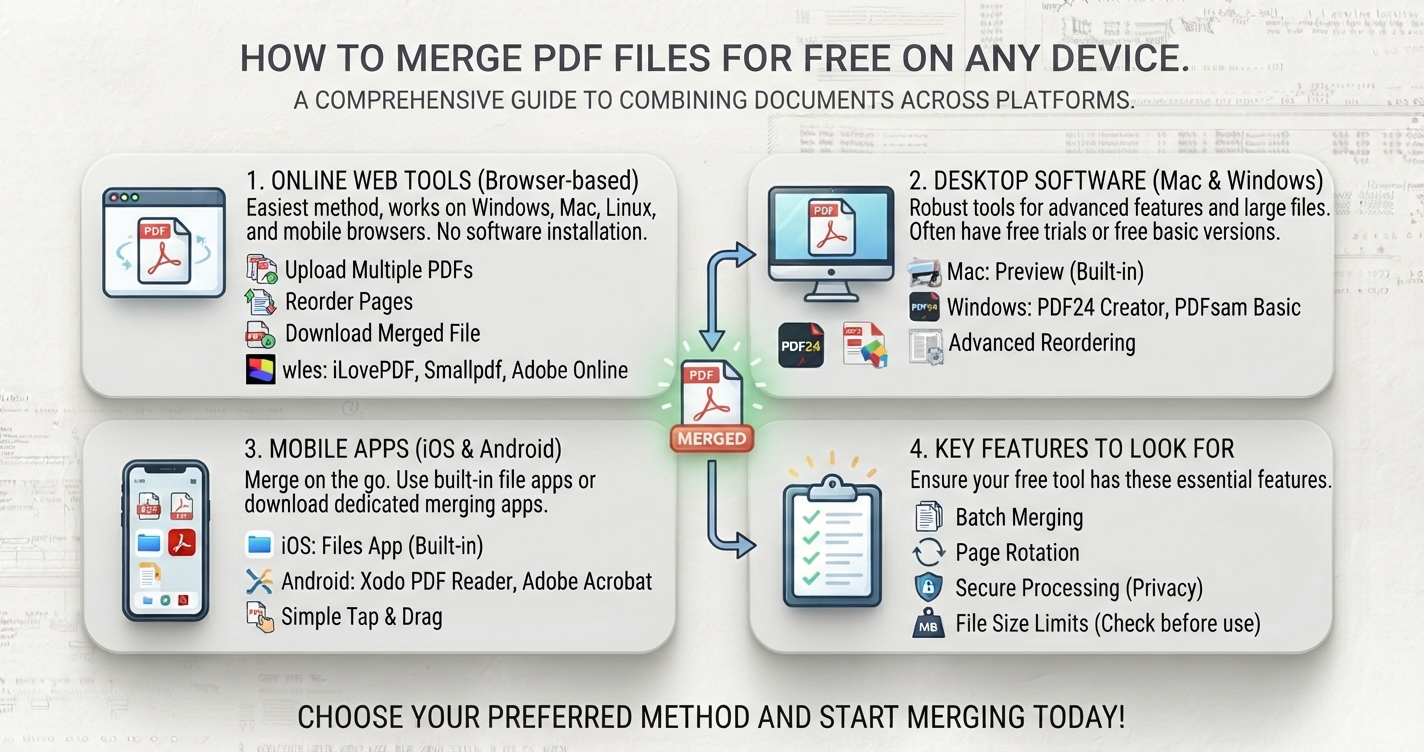
- Open Merge PDF and add the files.
- Check and adjust the order.
- Merge and download.
The files are combined on your device and are not uploaded, which is sensible for identity documents and transcripts.
5. Tidy the result
- Remove blank or duplicate pages with Split PDF.
- Turn any sideways pages with Rotate PDF.
- For long bundles, add continuous numbering with Add Page Numbers to PDF so reviewers can refer to pages.
6. Get under the size limit
| If the file is | Do this |
|---|---|
| Slightly over | Rescan colour pages in greyscale |
| Several times over | Scans are too detailed: rescan at 150 to 200 dpi, or compress photos before converting |
| Large because of one document | Replace just that scan |
| Still too large | Check whether the portal allows several uploads, and split logically |
Details are in why PDFs get large. Do not shrink so far that small print on transcripts becomes unreadable.
7. Name the file
Use the portal’s pattern if it gives one. Otherwise: Surname_Firstname_Application_Role-or-Course.pdf. Avoid spaces, accents and symbols, which some systems mishandle, and avoid “final_v3_REAL”.
Pre-submission checklist
- Opens correctly on a computer and a phone.
- Every page present, upright and in order.
- Smallest text readable at 100% zoom.
- Your name is on the CV and letter, and in the file name.
- No tracked changes, comments or highlighting left behind.
- Size under the limit.
- Correct organisation and role named in the letter. Reused letters are where this goes wrong.
- You have kept a copy of exactly what you submitted.
Common mistakes
| Mistake | Why it hurts |
|---|---|
| Photos of documents taken at an angle | Hard to read, looks careless |
| A CV saved as an image | Text cannot be searched or parsed by recruitment software |
| Password-protected files | Reviewers and systems cannot open them |
| Huge colour scans | Rejected by the portal or slow to open |
| Extra documents nobody asked for | Bury the important ones |
Advantages and disadvantages of a single combined PDF
Advantages
- Nothing gets lost or read out of order
- One upload, one file to check
- Looks organised
Disadvantages
- Not suitable where the portal has a separate slot per document
- A large bundle may hit the size limit
- Updating one document means merging again
Frequently asked questions
Should I send my application as one PDF or separate files?
Follow the instructions. If none are given, one combined PDF in a logical order is easiest for the reader.
What file size should an application PDF be?
Under the portal's stated limit, commonly 2 to 10 MB. Greyscale scans at 150 to 200 dpi keep documents small and readable.
How should I name my CV file?
Use your name and the document type, such as Surname_Firstname_CV.pdf, unless the employer specifies a format.
Should I password-protect my application documents?
No. Recruiters and automated systems may be unable to open them.