In this article
You need a paragraph, a reference number or an address from a PDF. You drag across it and nothing highlights, or it copies and pastes as nonsense. PDFs fail to give up their text in three distinct ways, and each has a different solution.
In short: If nothing selects, it is a scan and needs text recognition. If text selects but copying is blocked, the file has restrictions. If the pasted text is gibberish, the fonts are the problem and text recognition is again the fix.
Diagnose it in ten seconds
| What happens | Cause | Fix |
|---|---|---|
| Nothing can be selected; the page behaves like a picture | Scanned or image-only PDF | Text recognition (OCR) |
| Text highlights, but Copy is greyed out or does nothing | Copying is restricted by the creator | Ask for permission or an unrestricted copy |
| Text copies but pastes as wrong characters or boxes | Font encoding problem | OCR the page instead |
| Text copies with broken lines and odd spacing | Normal PDF behaviour | Clean it up after pasting |
1. The PDF is a scan
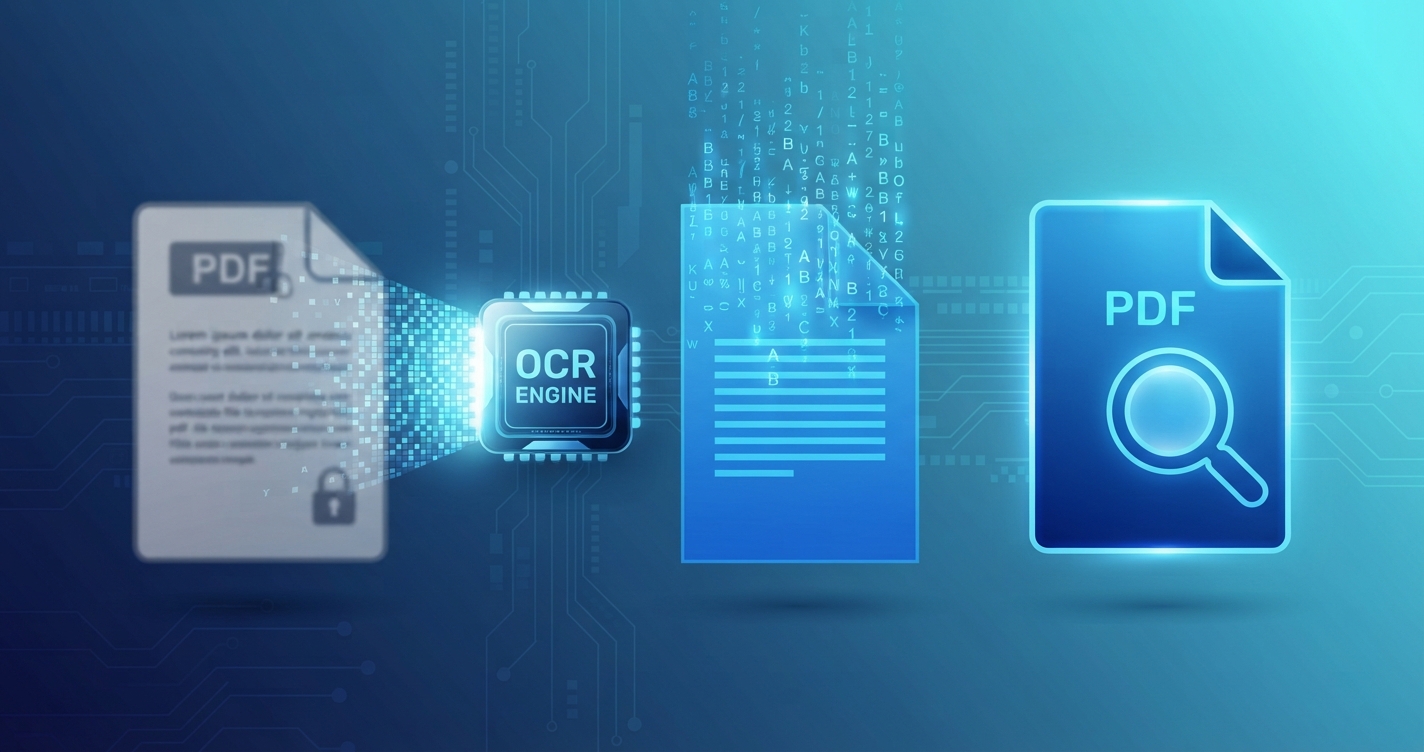
A scanned page is a photograph. There is no text to select. Use optical character recognition:
- iPhone, iPad, Mac: open the PDF and press or drag on the words. Live Text recognises them on recent systems, and you can copy directly.
- Android: open a screenshot of the page in Google Lens or Google Photos and choose the text option.
- Any computer: upload to Google Drive, right-click and choose Open with → Google Docs.
- Windows 11: the Snipping Tool’s Text actions can recognise text in a screenshot.
A full comparison of methods is in how to make a PDF searchable with OCR.
2. Copying is restricted
PDF creators can set permissions that ask software not to allow copying, printing or editing. Your reader’s document properties show this under Security, for example “Content copying: Not allowed”.
The restriction expresses the wishes of whoever published the document. The right response depends on your relationship to it:
- It is your own document and you have the permissions password: open it in the software that protected it and remove the restriction.
- It came from a colleague, client or supplier: ask them for an unrestricted copy or for the text.
- It is a published or licensed document: the restriction is usually deliberate. Quote short passages by retyping, with attribution, within what copyright law allows, and ask the publisher for anything more.
We do not provide instructions for removing protection from documents that belong to someone else.
3. The text pastes as gibberish
Sometimes a PDF displays perfectly but pastes as symbols, wrong letters or empty boxes. The file stores the shapes of the characters without a usable map from those shapes to real letters, which happens with some custom fonts and older export tools. The words exist only visually, so treat the page like a scan: take a screenshot or use OCR and copy the recognised text.
4. The text copies, but badly
Even healthy PDFs are built for appearance, not for reuse. Typical symptoms and cures:
| Symptom | Why | Cure |
|---|---|---|
| A line break at the end of every line | Each printed line is stored separately | Replace line breaks with spaces |
| Words split by hyphens | Hyphenation at line ends | Find “- ” and remove it carefully |
| Columns interleaved | The reader copied across both columns | Select one column at a time; hold Alt or Option while dragging in some readers |
| Headers and page numbers mixed in | They are part of each page | Delete after pasting |
| Tables lose their structure | Cells are just positioned text | Paste into a spreadsheet, or use a table-extraction feature |
The Find and Replace tool tidies pasted text quickly: turn on regular expressions and replace \n with a space to join broken lines.
Tips for cleaner copying
- Zoom in before selecting; it is easier to start and end precisely.
- Use the reader’s Select text tool, not the hand or snapshot tool.
- For a whole page, press Ctrl + A or Command + A after clicking in the page, then copy.
- Paste as plain text (Ctrl + Shift + V in many programs) to avoid carrying fonts and colours along.
- If you only need certain pages for someone to work on, extract them with Split PDF.
When accuracy matters
Recognised text is never guaranteed correct. Check numbers, names, dates and anything with legal or financial weight against the original before using it.
Advantages and disadvantages of each route
| Route | Advantage | Disadvantage |
|---|---|---|
| Direct copy | Exact text | Messy line breaks |
| OCR | Works on scans and broken fonts | May contain errors |
| Asking the author | Clean source text and clear permission | Takes time |
| Retyping | Always possible for short passages | Slow, and typos creep in |
Frequently asked questions
Why can't I copy text from a PDF?
Either the PDF is a scanned image with no real text, or its creator has restricted copying, or its fonts lack the information needed to copy correctly.
How do I copy text from a scanned PDF?
Use text recognition: Live Text on Apple devices, Google Lens on Android, or open the file with Google Docs from Google Drive.
Why does copied PDF text paste as strange symbols?
The font in the PDF has no proper character mapping. Use OCR on the page to get the real letters.
How do I remove line breaks from copied PDF text?
Paste into a find-and-replace tool and replace line breaks with spaces.