In this article
Modern Android cameras produce photos of 3 to 10 MB or more. That is too big for many upload forms and fills storage quickly. Because every manufacturer ships a different gallery app, there is no single button that works on all phones, so this guide gives the methods that work everywhere first and the brand-specific ones second.
In short: For an exact limit, compress in the browser. For everyday sharing, use your gallery’s resize option if it has one. To save space long term, lower the camera resolution.
The options at a glance
| Method | Works on | Control |
|---|---|---|
| Browser compressor | Every Android phone | Exact KB and pixels |
| Gallery resize | Samsung and some others | Preset percentages or sizes |
| Crop | Every gallery app | Rough |
| Camera resolution | Every phone | Smaller photos from now on |
| Cloud backup and free up space | Phones with Google Photos | Removes local copies |
1. Compress in Chrome
- Open the Image Compressor in Chrome.
- Tap the upload area and choose the photo from your gallery or files.
- Set a maximum width, for example 1200, and a target size in KB if you have a limit to meet.
- Tap download. The file is saved to the Downloads folder, which you can open from the Files app.
This works identically on Samsung, Pixel, Xiaomi, OnePlus and other phones, and the photo is processed on the device without being uploaded.
2. Use the gallery’s resize option
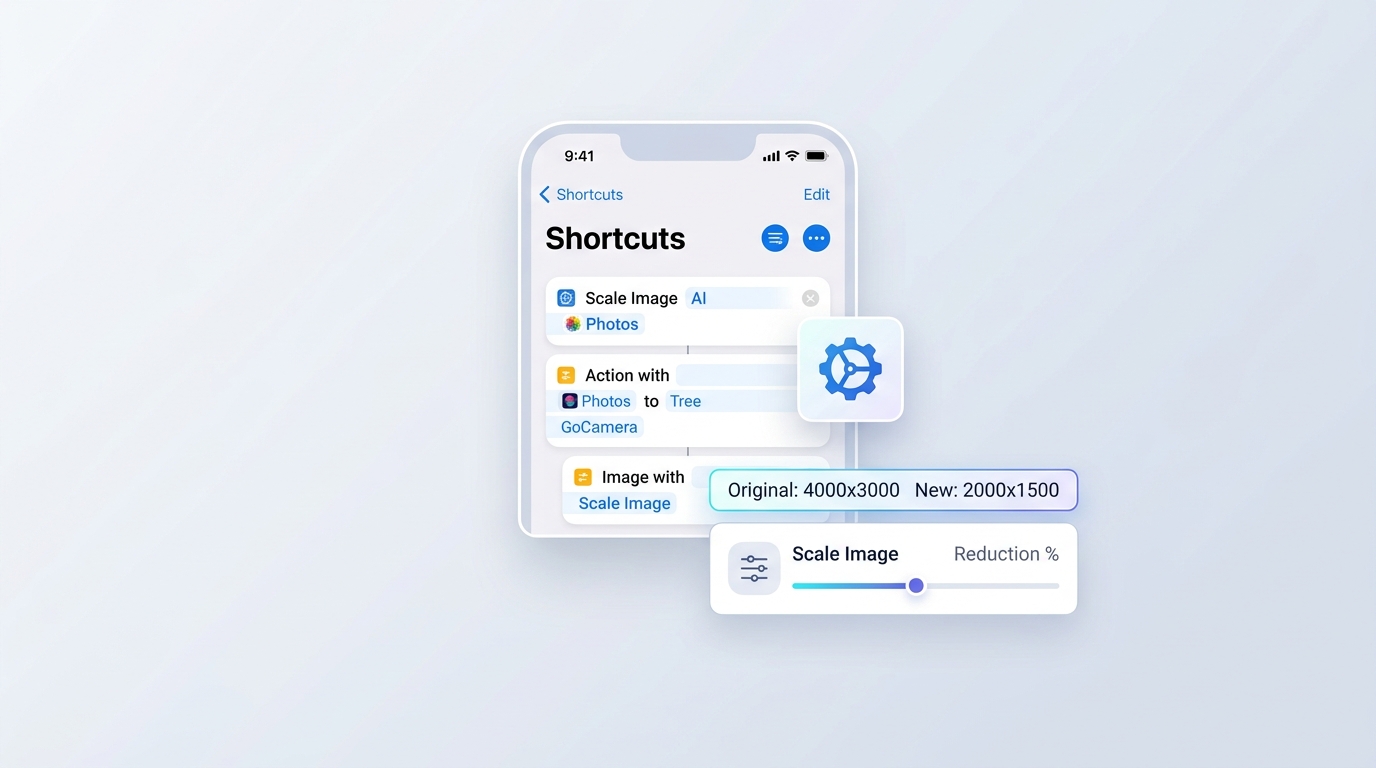
On Samsung phones, open the photo in Gallery, tap the pencil to edit, open the three-dot menu and choose Resize, then pick a percentage and save. Menus move between software versions, so look for “Resize” inside the editor’s extra options. Other brands may offer a similar choice or none at all. Google Photos has no resize feature for saved copies.
3. Crop
Every gallery can crop. Open the photo, tap Edit, choose crop and trim away what you do not need. Save as a copy if the app offers it, so the original stays intact.
4. Take smaller photos
- Open the Camera app and find the resolution or aspect-ratio setting, usually at the top of the screen or under settings.
- Phones with 50, 108 or 200 megapixel sensors normally shoot at about 12 megapixels by default. Make sure the high-resolution mode is off unless you need it.
- If your phone offers HEIF or “High efficiency pictures”, turning it on saves space, at the cost of compatibility with some websites and older computers.
- RAW or “Pro” capture creates very large files. Leave it off for everyday photos.
5. Free up storage without shrinking anything
If the real problem is a full phone, back up to Google Photos and use Free up space in the app, which removes device copies that are safely backed up. Check that backup has finished first. Google Photos also offers a Storage saver quality setting that keeps slightly reduced copies in the cloud so they take less of your account storage.
Sharing through chat apps
Messaging apps reduce photos automatically, which is convenient but uncontrolled. If you need a small file of reasonable quality, compress it yourself and send it as a document or with the app’s HD or original-quality option, so it is not reduced a second time.
Which size should I aim for?
| Purpose | Max width | Typical result |
|---|---|---|
| Online form with 100 KB limit | 800 to 1000 px | Under 100 KB |
| Email attachment | 1600 px | 300 to 600 KB |
| Website or blog | 1200 to 1920 px | 100 to 300 KB |
| Keeping for printing | Keep the original | Full size |
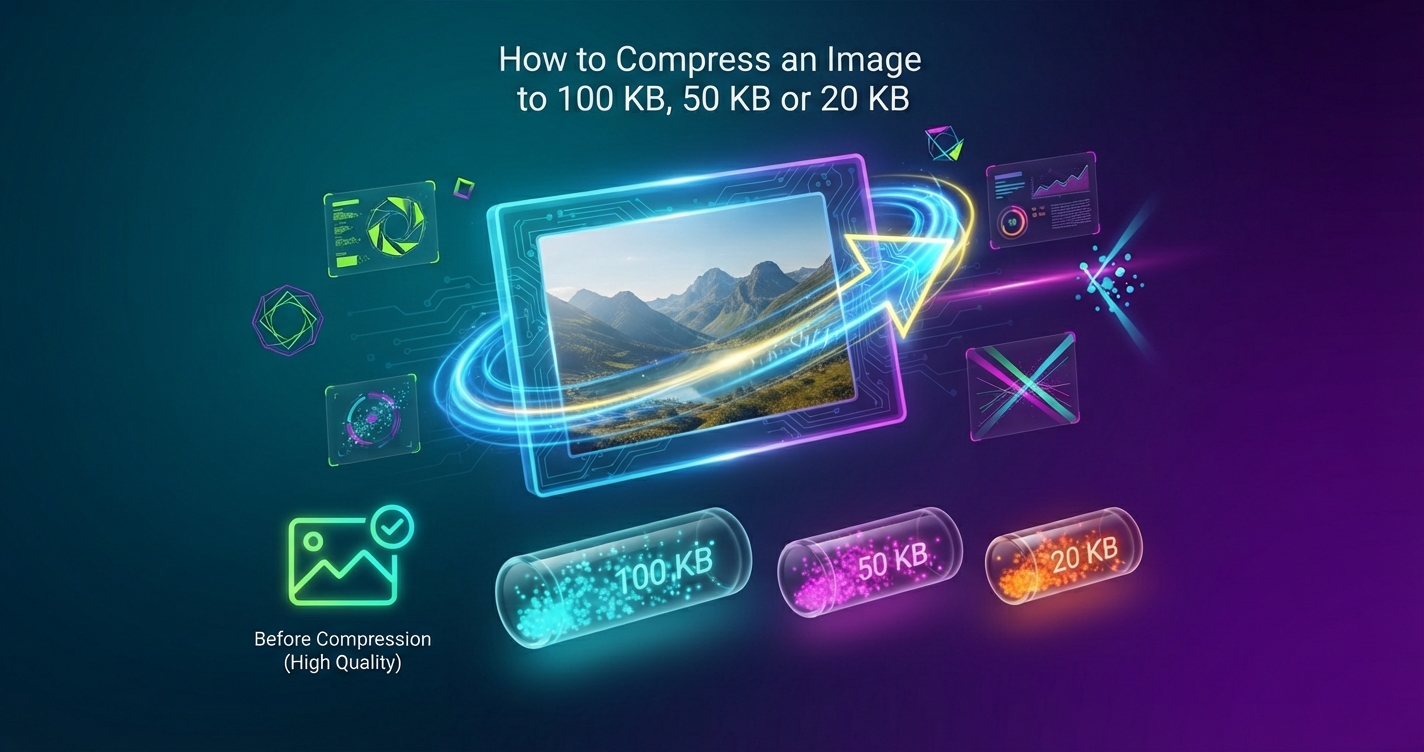
For strict limits, see how to compress an image to 100 KB, 50 KB or 20 KB.
Advantages and disadvantages of lowering camera resolution
Advantages
- Every photo is smaller without extra steps
- Faster backups and sharing
Disadvantages
- Less detail for cropping and large prints
- Cannot be undone for photos already taken
Frequently asked questions
How do I compress a photo on Android without an app?
Use a browser-based compressor in Chrome. It needs no installation and works on every Android phone.
Why are my Android photos so large?
High-megapixel sensors and high-quality JPG settings produce large files. Check that the camera's high-resolution or RAW mode is switched off.
Does Google Photos reduce photo quality?
Only if you choose the Storage saver backup setting. Original quality keeps photos exactly as taken.
Where do downloaded photos go on Android?
To the Downloads folder, which you can open from the Files app or your gallery's albums list.