In this article
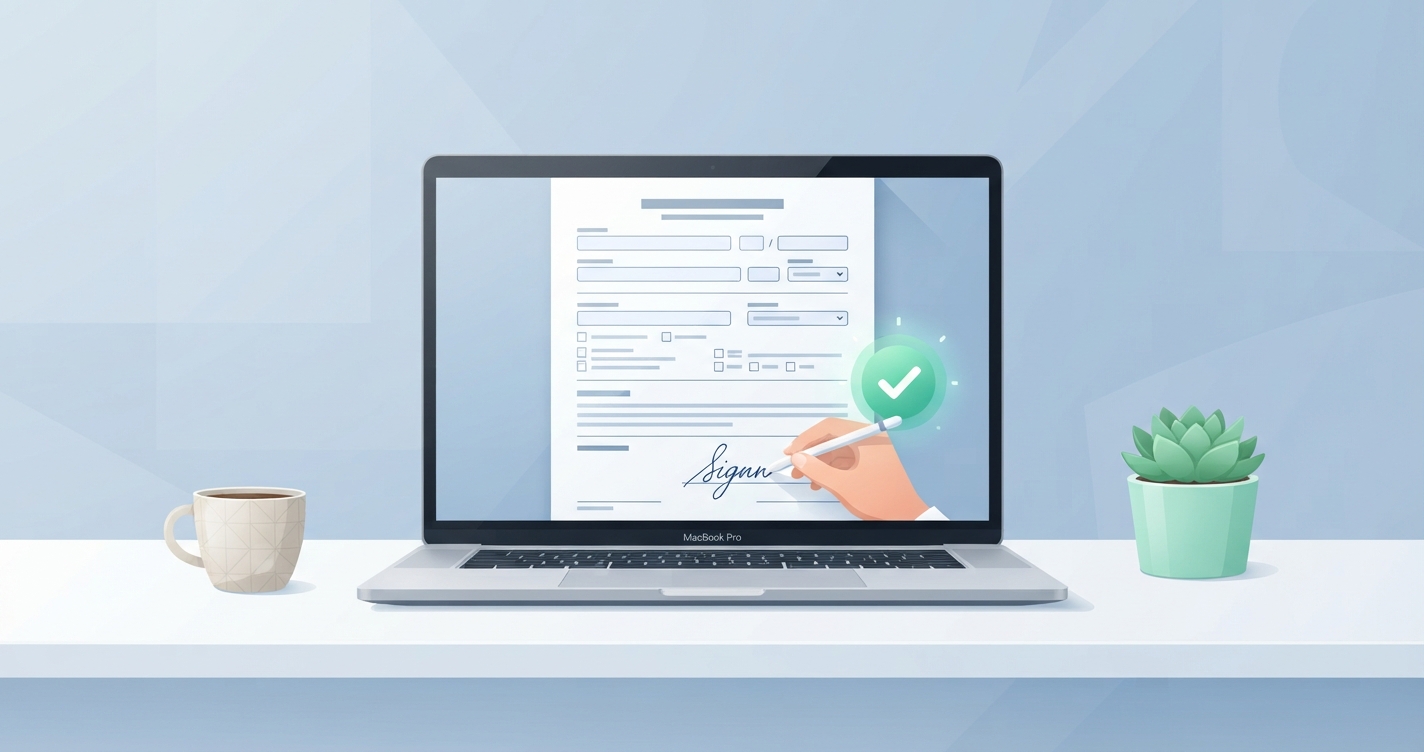
A form arrives as a PDF with a request to complete, sign and return it. Printing it, filling it in by hand and scanning it back works, but it is slow and the result is often hard to read. Every major platform can do the whole job on screen.
In short: Use Preview on a Mac, Markup on an iPhone, or the free Adobe Acrobat Reader or Microsoft Edge on Windows and Android. Type into the form, add your signature, save a copy.
Fillable or flat?
Click on a blank in the form. If a text cursor appears in a box, the form is fillable: it has real fields, and any PDF reader or browser can complete it. If nothing happens, it is flat, a picture of a form, and you need a tool that lets you place text on top of the page.
Tools by device
| Device | Free tool | Fillable forms | Text on flat forms | Signature |
|---|---|---|---|---|
| Mac | Preview | Yes | Yes | Yes |
| iPhone, iPad | Files or Mail, using Markup | Yes | Yes | Yes |
| Windows | Microsoft Edge, or Adobe Acrobat Reader | Yes | Yes | Draw in Edge; Fill & Sign in Reader |
| Android | Adobe Acrobat Reader or Google Drive | Yes | Yes | Yes |
| Chromebook | Gallery app or Chrome | Yes | Limited | Draw |
On a Mac
- Open the PDF in Preview.
- Click a field and type. For a flat form, show the Markup toolbar and use the text tool to place text.
- Choose the Sign button. Create a signature once by signing on the trackpad or holding a signed paper up to the camera.
- Click the signature to place it, then drag and resize.
- Choose File → Export as PDF to save a copy.
On an iPhone or iPad
- Open the PDF in Files or from a Mail attachment.
- Tap the Markup (pen tip) button.
- Tap fields to type, or tap + and choose Add Text for flat forms.
- Tap + → Add Signature, sign with your finger, and place it.
- Tap Done.
On Windows
- Open the PDF in Microsoft Edge. Fillable fields can be typed into directly.
- For flat forms, use Add text on the toolbar and click where the text should go.
- Use Draw to sign with a mouse, pen or finger.
- Select Save as to keep a completed copy.
The free Adobe Acrobat Reader has a dedicated Fill & Sign tool that stores a typed, drawn or image signature for reuse.
On Android
Install the free Adobe Acrobat Reader, open the PDF and choose Fill & Sign. Tap to add text, and use the signature button to draw and place your signature. Google Drive’s PDF viewer can also complete fillable forms.
Electronic and digital signatures
| Electronic signature | Digital signature | |
|---|---|---|
| What it is | An image or drawing of your signature, or a typed name | A cryptographic certificate attached to the file |
| Shows who signed | By appearance only | Verified identity |
| Detects later changes | No | Yes |
| Typical use | Everyday forms and agreements | Regulated, legal and high-value documents |
For most everyday purposes a drawn signature on a PDF is accepted, and many countries recognise electronic signatures in law. Some documents, such as certain property, court and government filings, require a specific type of signature or a wet-ink original. If the organisation states a requirement, follow it; if you are unsure about a legal document, ask them or a legal adviser.
Tips for a tidy result
- Use a consistent, readable text size, about the same as the form’s own print.
- Use an X or tick character for checkboxes on flat forms.
- Dates and reference numbers are the most common errors. Check them.
- Save under a new name so the blank form remains available.
- Send the completed PDF, not a screenshot of it.
If the form must be returned with other documents
Combine the signed form and supporting files into one document with Merge PDF. If you signed on paper after all, photograph or scan the page and turn it into a PDF with JPG to PDF.
Advantages and disadvantages of signing on screen
Advantages
- No printer or scanner needed
- Typed answers are legible
- Faster to return
Disadvantages
- A drawn signature does not prove identity
- Some organisations still insist on ink
- Flat forms take a little patience to line up
Frequently asked questions
Can I sign a PDF for free?
Yes. Preview on a Mac, Markup on an iPhone, Microsoft Edge on Windows and the free Adobe Acrobat Reader can all add a signature.
Is a signature drawn on a PDF legally valid?
In many countries electronic signatures are legally recognised for most agreements, but some documents need a specific kind. Check the requirements of the organisation involved.
Why can't I type into my PDF form?
It is a flat form without fields. Use a tool with an add-text feature to place text on the page.
How do I save a filled-in PDF so the answers stay?
Save or export a copy after filling it in. If answers disappear, print it to PDF, which fixes them onto the page.